





Granola integration checklist: Setup, testing, team rollout
March 4
TL;DR: Most tools that work great for one person fail at the team level because nobody configures the integrations, nobody structures shared access, and insights stay locked in private notebooks. Deploying Granola requires validating security and compliance (SOC 2 Type 2, GDPR, consent), connecting core integrations like Notion, HubSpot, and Slack (these are available on Business plans and above), configuring MCP for external AI tools, and structuring shared folders so meeting insights reach the people who need them. This checklist walks through each phase so you can go from first install to full team rollout without gaps.
You've chosen Granola because it solves the transcribing problem for individuals. But getting it to work for a team requires wiring the integrations that let meeting insights flow from private conversations into shared systems. Without that wiring, you end up with a dozen individual accounts and zero institutional memory.
This checklist covers five phases: compliance validation, core app and MCP setup, tool stack connections, testing, and team rollout. Work through them in order, and you'll have a deployment your security team approves and your colleagues actually use.
Use this Granola integration checklist to roll out to a team without gaps:
- Validate security and compliance (SOC 2 Type 2, GDPR, consent) with your security team
- Install the app, connect calendars, and wire up MCP for your other AI tools
- Connect your core tool stack (Notion, HubSpot, Slack) and extend with Zapier
- Test the full data flow end to end before inviting anyone
- Roll out with shared folders, a short training session, and an adoption check
Phase 1: Pre-integration security and compliance validation
Before inviting anyone to Granola, get your security team the answers they need. This phase covers plan selection, compliance documentation, and the consent workflow your team will use to inform participants that notes are being taken.
Verify plan requirements and pricing tiers
Integrations are available on Business and Enterprise plans only. The Free plan gives you core note enhancement, transcription, and shared folders for collaboration, but connecting to Notion, Slack, HubSpot, Affinity, Attio, or Zapier requires upgrading.
| Feature | Free | Business | Enterprise |
|---|---|---|---|
| Price | $0 | $14/user/month | $35+/user/month |
| Note enhancement and transcription | {"✓"} | {"✓"} | {"✓"} |
| Integrations (Notion, Slack, HubSpot) | {"✗"} | {"✓"} | {"✓"} |
| MCP for external AI tools | {"✗"} | {"✓"} | {"✓"} |
| Shared team folders | {"✓"} | {"✓"} | {"✓"} |
| Admin controls | {"✗"} | {"✓"} | {"✓"} |
| SSO | {"✗"} | {"✗"} | {"✓"} |
| Org-wide model training opt-out | {"✗"} | {"✗"} | {"✓"} |
| [Public API access](https://docs.granola.ai/help-center/sharing/integrations/enterprise-api) | {"✗"} | {"✗"} | {"✓"} |
Business includes admin controls for centralized billing and user management. Enterprise adds controls for meeting link sharing, SSO, auto-deletion policies, and organization-wide model training opt-out.
If your team needs SSO, usage analytics, or organization-wide model training opt-out, you'll want Enterprise. For most mid-sized teams starting out, Business covers the core integration needs as listed on the official pricing page.
Review SOC 2, GDPR, and data residency options
Your security team needs answers before approving deployment. Here's the compliance checklist:
- SOC 2 Type 2: We completed certification in July 2025.
- Data residency: We store notes in a US-hosted AWS Virtual Private Cloud, encrypt them at rest and in transit, and run daily backups.
- Audio policy: We transcribe in real time on macOS and Windows, then discard the audio. We don't store recordings anywhere. On iOS, we temporarily cache audio during transcription and delete it immediately after.
- Third-party AI training: We prohibit third-party AI providers from training on your data through our contracts with them. All users can opt out of our own anonymized training in Settings. We set Enterprise plans to opt out the entire organization by default.
- GDPR: We maintain GDPR compliance with documented security standards.
Establish your consent workflow
Granola runs on your laptop or phone and uses your device's audio to generate notes. Check whether your industry, jurisdiction, or organization requires you to notify participants before capturing a meeting, and tell participants you're using Granola to transcribe the call either way. Use our features, such as the automatic chat message or the video watermark transparency feature, to make it easier for you.
Before a meeting starts, tell participants you're capturing notes using an AI notepad. A single line in the calendar invite works well: "Notes will be captured using an AI transcription tool for internal documentation purposes." For recurring meetings, add a standing agenda item that covers it once, then reference it briefly each session.
For environments where consent needs to be documented, keep a short record: the invite language used, the date of verbal confirmation, or a shared policy acknowledgment. Telling participants you're using Granola to transcribe the call is the standard to hold to in every meeting. A clear, consistent workflow helps keep sensitive conversations running smoothly.
Phase 2: Core application and MCP setup
With security validated, you're ready to install the app, connect calendars, and wire up MCP so meeting context flows into your other AI tools.
Install the app and configure calendar permissions
Granola runs as a desktop app on macOS and Windows. The setup guide takes under five minutes:
- Download, install, and sign in: Grab the app from Granola for Mac or Windows, then sign in using your Google Workspace or Microsoft 365 account (personal Gmail and Outlook.com accounts are supported for the core app).
- Connect your calendar and grant microphone access: Granola reads your calendar to detect upcoming meetings and prompt transcription automatically, and you'll need to grant device audio permissions so the app can transcribe what you hear through your computer.
Before your first meeting, let participants know you'll be transcribing by using one of our features.
Granola works with any meeting platform. It runs on your laptop or phone and uses your device's audio to generate notes, so you can use it with anything: FaceTime, WhatsApp, Zoom, Google Meet, Slack huddles, you name it. People even use it to take notes on YouTube videos or podcasts! Refer to Granola 101 for a walkthrough of your first meeting.
"Easy to set up and runs quietly in the background. Accurate discussion summaries with the backup transcript available." - Joe M. on G2
Set up Granola MCP for external AI tools
MCP (Model Context Protocol) is a standard that lets AI tools connect to external data sources. Think of it like USB-C for AI apps: a common way for things to plug together. With Granola MCP, you can access your meeting notes directly within Claude, ChatGPT, Cursor, and other MCP-compatible tools.
Instead of switching to Granola to look up what a customer said last week, you can ask Claude "What objections came up in our enterprise demos this month?" and get answers pulled from your meeting notes with citations. For anyone running regular interviews, this turns your entire conversation history into a queryable knowledge base inside the tools you already use. Follow the Granola MCP set-up guide to get started.
Phase 3: Connecting your tool stack
This phase turns Granola from a personal notepad into shared infrastructure. Connecting Notion, HubSpot, and Slack ensures meeting insights reach your team's existing workflows without manual copy-paste.
For step-by-step setup of each individual integration, see the full Granola integrations guide. This checklist focuses on rolling those connections out across a team.
Step-by-step: Notion, HubSpot, and Slack integrations
Navigate to Settings via your avatar in the bottom left, find the integration under Integrations, and authenticate through your browser. Here's the flow for each:
Notion setup:
- Open Settings, then click Notion under Integrations
- Click "Connect Notion" and you'll be redirected to your browser to authorize
- Select the "Use a template provided by the developer" option when prompted
- Make sure you're using the same email address for both Granola and Notion accounts
HubSpot setup:
- Navigate to Settings via your avatar, find HubSpot under Integrations
- Click to connect, which launches a webpage for OAuth
- Once connected, you can push any meeting note to the relevant contact or deal record
Slack setup:
Note: Connect Slack using the same work account you use in Granola.
- Go to Settings, click to connect your Slack workspace
- Authorize through the browser prompt
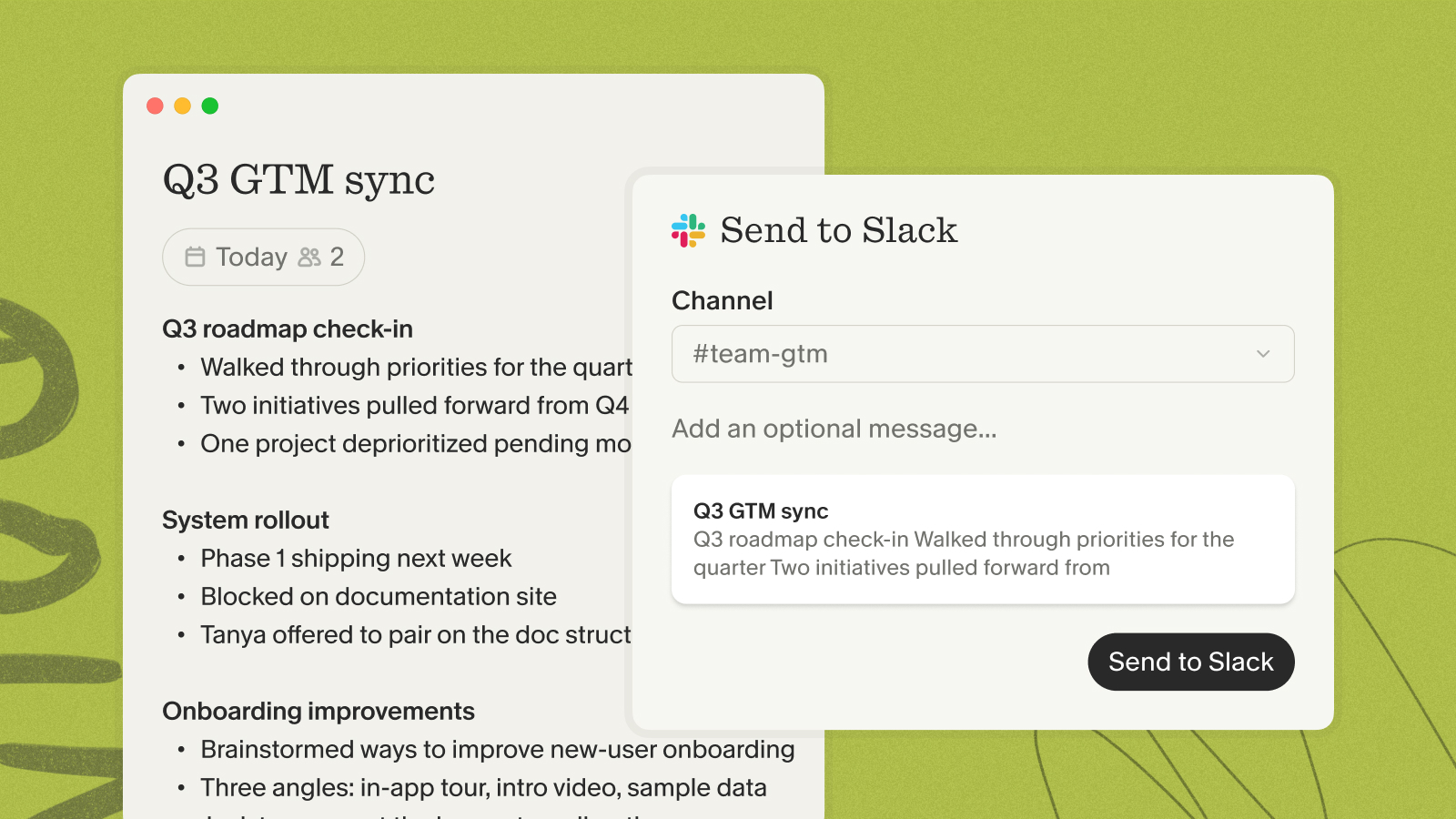
- Share individual notes by clicking the Slack option in the top right of any note
- For automatic posting: click the three dots next to a folder name, select "Integrations," choose a Slack channel, and every new note in that folder posts automatically
"I love the ability to ask about specifics during meetings, and the app's integration with platforms like Zoom, Teams, and Slack enhances my productivity." - Catherine S. on G2
Extend with Zapier and the Enterprise API
For tools not covered by native integrations, Zapier connections are available on Business plans so you can push meeting notes to project management tools, databases, or custom workflows. Enterprise customers also get public API access for building custom integrations directly, along with admin controls for managing meeting link sharing and user permissions across the organization.
Phase 4: Testing and verification
Before inviting the wider team, run through this verification checklist to confirm everything works end to end.
Validate data flow and artifact creation
Run a test meeting and verify:
- Transcription: Granola detects the meeting and generates a transcript
- Note enhancement: Rough notes get enhanced with relevant context from the transcript
- Notion sync: Enhanced note appears in your designated Notion database with correct properties
- HubSpot sync: Note attaches to the correct contact or deal record
- Slack notification: Note posts to your designated channel (both manual share and folder automation)
- Folder query: "Chat with folder" returns cited answers from the test note
"Granola nails exactly what I need: clean, reliable meeting transcripts and smart follow-up summaries without any fluff." - Verified user on G2
Phase 5: Team rollout and adoption
A configured tool with no users is still shelfware. This phase covers folder structures, training, and impact measurement that drive actual adoption.
Structure shared folders for team access
Shared folders are where Granola becomes institutional memory rather than personal notes. When we launched team workspaces, the core idea was creating dedicated spaces that anyone on your team can access, even without a Granola account.
Here's a recommended starting structure:
- Customer feedback: All user interviews and customer calls, queryable for product patterns
- Sales discovery: Pipeline conversations organized by stage or segment
- Hiring loops: Interview debriefs organized by role
- Weekly syncs: Team meetings and 1:1s for decision tracking
- Project-specific folders: Temporary spaces for launches, sprints, or investigations
Connect each folder to a Slack channel so notes post automatically via the integrations settings, and teammates who weren't in the meeting can still query the folder for context.
Train the team on the AI notepad workflow
Plan for a meeting covering three things:
- The core workflow:You jot rough notes during the meeting. Granola transcribes while you stay focused on the conversation. When the meeting ends, Granola enhances your notes with relevant context from the transcript. You review, edit, and share.
- Note templates: Show team members how to open the template picker inside Granola and switch between discovery, 1:1, and custom templates to get the right output format for each meeting type. The note templates guide covers how to access built-in options and create your own.
- Folder queries: Demonstrate asking a question across a shared folder ("What concerns did enterprise customers raise about onboarding this quarter?") and getting cited answers from multiple meetings.
For teammates who don't have Granola accounts, shared folder links let them view notes, explore summaries, and ask questions via the AI chatbox without accessing the full transcript.
"I like that Granola provides detailed, thorough notes with actionable next steps in a clean format. Plus, the initial setup was very easy." - Verified user on G2
Measure adoption and impact
After a few weeks, measure whether Granola is actually saving your team time. Track these indicators:
- Post-call admin time: The minutes spent writing up and distributing notes after each meeting, which should fall as enhancement and folder-sharing replace manual write-ups.
- Notes reaching shared systems: The share of meetings whose notes actually land in your CRM, Notion, or Slack channels rather than staying in private notebooks.
- Folder queries run: How often teammates ask questions of a shared folder, a signal that the notes are becoming institutional memory for the team.
If post-call admin time doesn't drop within two weeks, check that team members are jotting notes during meetings (the human-in-the-loop step matters for note quality) and that shared folders connect to the right Slack channels.
Download Granola for Mac, Windows, or iOS and connect your calendar. Wire in your integrations and watch meeting insights flow into Slack, your CRM, and shared folders from day one.
FAQs
How do I roll out Granola across a team?
Roll out Granola in five steps: validate security and compliance with your security team, install the app and connect calendars, connect your core integrations (Notion, HubSpot, Slack), test the full data flow on one meeting, then invite the team with shared folders and a short training session. Working in that order means your security team approves the deployment and colleagues actually adopt it, rather than ending up with scattered individual accounts.
What does a Granola integration checklist include?
A Granola integration checklist covers five phases: security and compliance validation (SOC 2 Type 2, GDPR, consent), core app and MCP setup, connecting your tool stack (Notion, HubSpot, Slack, Zapier), end-to-end testing, and team rollout with shared folders and training. The point of working through it in order is to go from first install to full team adoption without leaving gaps that strand insights in private notebooks.
Does Granola store audio from meetings?
No. We transcribe in real time on macOS and Windows, then discard the audio. On iOS, we temporarily cache audio during transcription and delete it immediately after.
Which meeting platforms does Granola support?
Granola works with any meeting platform on desktop, including Zoom, Google Meet, Microsoft Teams, Webex, Slack Huddles, and browser-based WhatsApp calls.
Do integrations work on the Free plan?
No. Notion, Slack, HubSpot, Attio, Affinity, Zapier, and MCP connections require a Business plan ($14/user/month) or above.
Can non-Granola users access shared meeting notes?
Yes. Shared folders and note links are accessible to anyone, even without a Granola account, with the ability to explore summaries and ask questions via the AI chatbox.
Does Granola train AI models on my data?
We prohibit third-party providers like OpenAI and Anthropic from training on your data through our contracts. We use anonymized data for our own improvements, and you can opt out in Settings. We set Enterprise plans to opt out the entire organization by default.
Key terms glossary
MCP (Model Context Protocol): An open standard that lets AI tools like Claude, ChatGPT, and Cursor connect to external data sources, including your Granola meeting notes.
Bot-free capture: Granola's architecture for transcribing meetings by capturing device audio directly from your laptop or phone, rather than connecting to the meeting platform as a separate participant.
Shared team folders: Centralized spaces within Granola where multiple team members can access, search, and query meeting notes, even without individual Granola accounts.
SOC 2 Type 2: An auditing standard that verifies a company's security controls are not just designed but operating effectively over time. Granola achieved this certification in July 2025.
Note enhancement: The process where Granola takes your rough notes from a meeting and enriches them with relevant quotes, context, and details from the transcript.