Bring your meeting notes into Figma for design reviews
September 11
TL;DR: Design reviews fail when feedback lives apart from the canvas. Granola captures meeting context during the review, enhances your rough notes with exact transcript language, and MCP-compatible tools pull that structured history into your Figma workspace. Granola focuses on note quality: you jot what matters during the critique, Granola fills in the design context afterward, and every iteration stays backed by verified user evidence. No manual copy-paste marathons, no lost context when teammates move on. Every element on the canvas stays traceable to the research that shaped it, and folder queries surface patterns across months of past reviews when you need to defend a decision.
Most product teams spend hours in design reviews only to realize a week later that the most critical feedback is buried in a Slack thread no one can find. The canvas lives in Figma, the conversation lives somewhere else, and the connection between the two depends on whoever happened to take notes that day.
Back-to-back design reviews and user interviews create a documentation gap: you are either fully present in the critique or distracted by capturing it. This guide shows you how to use Granola to capture high-fidelity meeting context and bring it directly into Figma, so every design iteration is backed by real user evidence rather than memory.
Fixing the gaps in your design feedback loop
Design feedback loops break in predictable places.
The cost of siloed interview data
User feedback loses value the moment it leaves the room. When interview notes sit in one app, design files in another, and decisions in Slack threads, every sprint begins with a search for context that someone already captured. A 2018 Panopto-commissioned survey of more than 1,000 US workers, as reported by PR Newswire, found that knowledge workers waste an average of 5.3 hours per week waiting for information from colleagues or recreating existing institutional knowledge. The average large US business loses $47 million in productivity each year to inefficient knowledge sharing.
Research debt accumulates when insights become unfindable: the team pays interest in repeated questions, re-litigated decisions, and interviews that ask what earlier interviews already answered. The risk spikes when a teammate leaves, because synthesis that lived in their head or their personal docs leaves with them.
Shared folders change the equation. When every interview and critique lands in a shared team workspace, the evidence base survives any single departure, and the next person queries past research instead of rerunning it.
Connecting meeting notes to Figma
The Figma Community includes sticky note resources built for critiques: Sticky Notes for Design Critiques is a duplicable community template of sticky-note components you can copy into your own file and use as a starting point for canvas feedback.
| Method | How it works | Best for | Limitation |
|---|---|---|---|
| Native Figma comments | Threaded comments pinned to canvas locations | Quick async feedback | No tie to the meeting record |
| Sticky note plugins | Visual notes on the canvas, locked designs optional | Live critique sessions | Manual entry during the conversation |
| External meeting tools | Notes live outside Figma, pasted in afterward | Teams standardized on one meeting platform | Context drifts as notes update |
| Live-sync (MCP-connected notes) | AI tools pull structured meeting context into the workspace | Research-backed reviews needing exact quotes | Requires a connector setup |
The live-sync row matters most. Most AI note tools join the call as a visible participant, which is why more teams now evaluate device-level capture. Granola takes a different approach as an AI notepad: it transcribes device audio in real time and structures notes around what you typed. That notepad-first design is why 70% of users return a week after installing: there is no new system to learn, just a notepad that transcribes.
| Approach | Source of truth | Setup effort | Best use case |
|---|---|---|---|
| Live-sync via MCP | Single, refreshed with every meeting | Connect once | Ongoing projects with weekly reviews |
| Static paste | Snapshot that drifts over time | None | One-off critiques and share-outs |
Avoiding recall bias in feedback
Back-to-back reviews break human memory in a predictable way: the loudest or most recent feedback wins, and quiet but critical comments disappear. When you are also the note-taker, the tradeoff gets worse, because typing during a critique means missing the follow-up question that would have surfaced the real issue.
We built real-time transcription to remove that tradeoff: you stay present, jot a rough label like "nav confusion," and Granola fills in the exact customer language afterward. Your notes stay in black, AI additions appear in gray, and you control what survives.
| Aspect | Raw transcript | Structured Granola summary |
|---|---|---|
| Length | Thousands of words, unfiltered | Focused on what you flagged |
| Design detail | Buried in small talk | Surfaced with supporting quotes |
| Time to use | Full re-read required | Scan, verify, paste into Figma |
The transcript stays available for verification, but the summary is what travels to the canvas.
How design teams use meeting notes in Figma
Once the capture problem is solved, three habits turn notes into a working part of the design file.
Label feedback by component during critiques
Design critiques produce feedback about specific components, not general impressions. The workflow that works: during the review, jot component-level labels in your notepad ("Header feedback," "Checkout flow step 2"), and let the enhancement pull every relevant transcript moment under each label. Then place those notes next to the matching frames.
This is where human-guided notes beat full automation. A generic summary treats a passing comment about the header the same as ten minutes of debate about checkout. Your labels tell the AI which is which.
Analyze project evolution in Figma
A single review tells you what to change. Ten reviews tell you whether the changes worked. Tracking feedback across cycles means organizing notes by relationship: which client, which stakeholder, which project.
Granola's People and Companies views group every conversation by the people involved, and folder queries extend that across the team. You can ask how a specific client's feedback has shifted since March and get an answer with citations.
How to map discovery insights to Figma files
Here is the four-step workflow you can run after every round of discovery calls.
Step 1: Summarize user research calls
Start before the call. Pre-meeting briefs surface open threads and context from past conversations with the same participant, so you walk in knowing what to probe.
During the interview, jot rough notes only when something matters: a pain point, a phrase worth quoting, a feature request. Granola transcribes device audio in real time and enhances your notes with transcript context when the call ends, a workflow covered in our step-by-step guide to AI meeting notes.
For design research, build a custom template once and reuse it: ask for the flow being tested, friction observed, exact quotes, severity, and requested changes. The template editor applies that structure to every research call.
Step 2: Polish research for Figma import
Raw enhanced notes are close to done, but the canvas needs tighter language. Use Granola Chat to compress: "Extract the design requests from this call as bullet points, each with a supporting quote." Granola Chat pulls answers from your transcript and notes, and you can iterate until the output is tight enough to paste, using the approaches in our guide to chatting with your meetings.
Keep each polished insight to three parts: the observation, the user's words, and the affected flow. That structure maps cleanly onto a sticky note.
Step 3: Place and color-code notes on the canvas
Create a sticky note component with auto-layout so notes resize as you paste longer quotes, then place each note beside the frame it references. Color-code by type: one color for pain points, another for requests, a third for praise worth protecting. Notes that resize cleanly and stay attached to frames survive the constant rearranging of a working file.
Step 4: Align on what changes
Steps one through three are solo work. Step four is where you and the design team align: walk the canvas together, compare each note against the user flow it touches, and decide what changes, what waits, and what needs another interview. Treat the canvas as a shared surface rather than a handoff.
Reviewing user feedback directly in Figma
Feedback on the canvas still needs ownership, status, and a path into the team's real task list.
Assign owners and push feedback to tasks
Feedback that never becomes a task is decoration. For each note on the canvas, decide the owner and the next action, then push it where the team tracks work.
Our Slack integration (Business plan and up) posts summaries to the channel your designers already watch. Setup takes a few minutes from the Slack Marketplace listing.
Directly pin feedback to Figma designs
Placement rules that keep the canvas readable:
- Pin to the frame, not the page: feedback travels with the element it references.
- One idea per note: split compound feedback so each note can be resolved independently.
- Quote first, interpretation second: the user's words on top, your analysis below.
Keep track of open review feedback
Feedback needs status, not just placement. Agree on three labels (open, in progress, resolved) and apply them to notes on the canvas so anyone can scan the file and know where things stand.
For tasks that need to land in your project management tool rather than on the canvas, our Zapier integration (Business plan and up) connects Granola to over 8,000 apps, so a committed action item in a review can become a task automatically.
Find specific user feedback within Figma files
Months of accumulated reviews become useful only if you can search them.
Query past feedback by theme
Six months of reviews hold too much context to re-read but too much value to ignore. Folder-level queries solve this: ask "What did users say about our navigation layout?" across fifty past meetings and get an answer built from every relevant conversation, with citations.
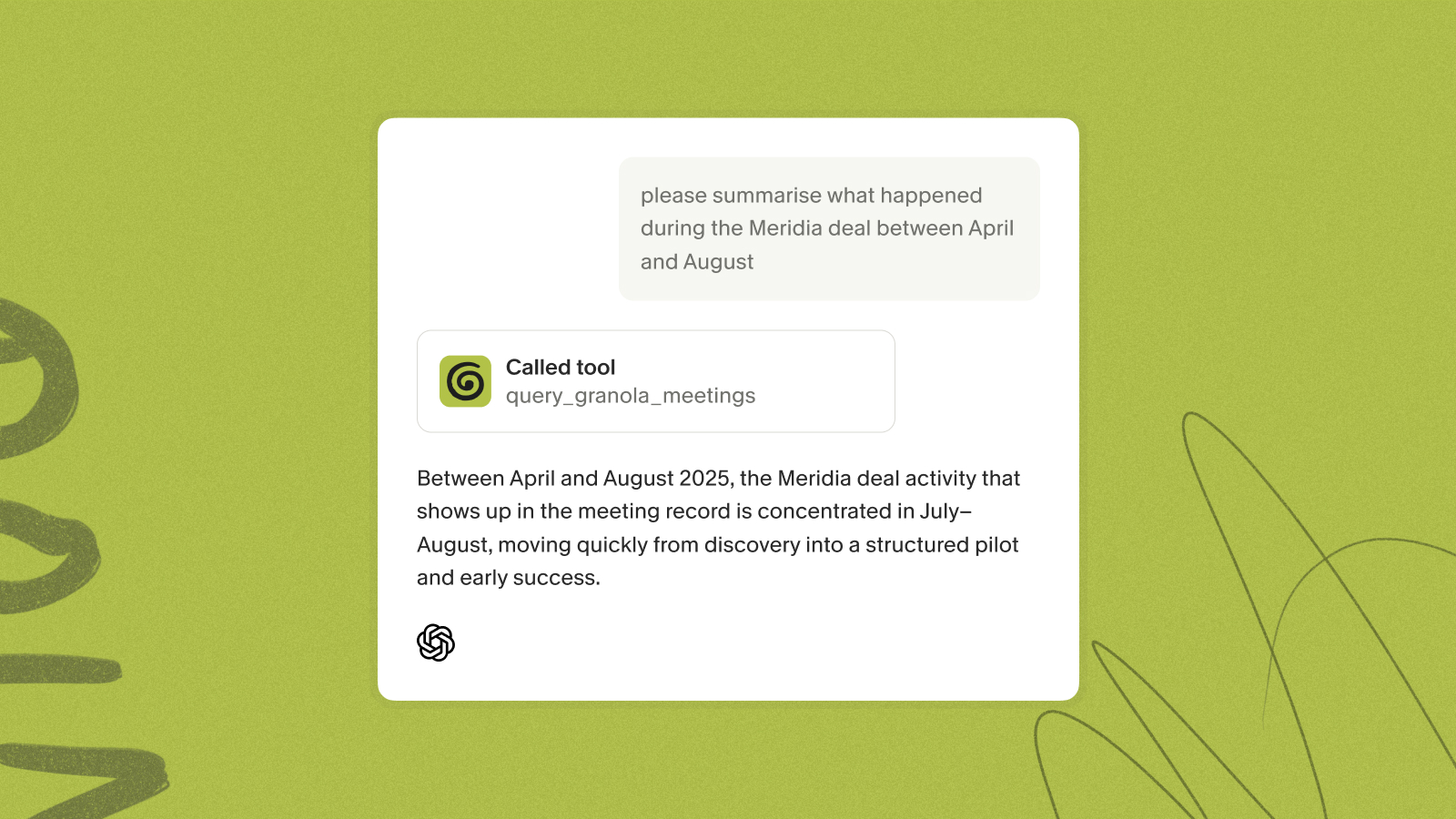
Because Granola is an official connector for tools like ChatGPT, you can also run that search directly inside ChatGPT while you work, then paste the verified quotes onto the canvas.
Trace every design decision back to user evidence
We believe every element on the canvas should trace back to a user need. When a designer can point to the quote behind a component, prioritization debates get shorter: the question shifts from "whose opinion wins" to "which evidence is stronger."
This is also how research survives roadmap churn. Designs get deprioritized and revived months later, and the attached evidence means the next person picks up with full context instead of a cold start.
Identify recurring user pain points
Single data points are anecdotes. Repetition is a pattern. Query across interviews for the same theme and count how often it appears before it earns roadmap space.
Through MCP, Claude can analyze themes across your meeting history (30 days on the free Basic plan, full history on paid plans), and the Granola and Claude connector takes minutes to set up. Bring the resulting pattern list to your next prioritization session with quotes attached, and the conversation shifts from opinion to evidence.
The best time to add research to Figma
Timing determines whether research shapes the work or arrives too late to matter.
Streamlining Figma design critiques
Add research at three moments: before the critique for context, during for capture, and after for synthesis. Before a live session, let participants know notes are being captured. Granola's automatic in-chat notification posts a message when transcription starts, and the optional video watermark stays visible for late joiners.
Three copy-pasteable templates for your next review:
- Quick Sync (15 minutes): two minutes of context (what changed since last time), eight minutes of frame-by-frame feedback, five minutes locking action items. Jot "Decision:" and "Change:" labels as you go.
- Formal Stakeholder Review: structure the session as goals, evidence from research, proposed changes, and open questions. Build a custom Granola template with the same sections so enhanced notes arrive pre-sorted.
- Research Synthesis: one column per participant covering pain point, exact quote, severity, and affected flow. Query the folder across interviews before the session so the patterns are already drafted.
How to import review notes into Figma
Three paths, in order of effort:
- Copy-paste: fastest for one-off reviews. Enhance the notes, copy the polished bullets, paste into sticky notes on the canvas.
- MCP connection: connect Granola once in your MCP-compatible tool, then ask for what you need from inside your workflow. Granola is an official connector for Figma, Claude, ChatGPT, Cursor, and others, and the MCP setup guide covers the connection steps.
- Team automation: shared folders plus integrations keep every review's output flowing to the same place without manual sending.
MCP works on every plan. The free Basic plan reads the last 30 days of meeting history, while paid plans add full history and complete transcript access.
How to document Figma meeting notes
The format that survives contact with a canvas:
- Lead with the component: "Checkout step 2: address field" beats "General feedback."
- Keep notes short: two lines of observation, one quote.
- Mark status: open, in progress, resolved.
- Date everything: designs change, and undated feedback misleads.
Aligning teams with Figma meeting notes
Engineering, product, and design align fastest when they argue from the same evidence. A Figma file carrying quotes and decisions from the actual reviews gives all three a shared reference point, which ends the "I thought we agreed" genre of meeting.
Try Granola for free. Download the Mac or Windows app, connect your calendar, and run your next design critique. Enhanced notes are ready shortly after the call ends, and the free Basic plan includes MCP access to the last 30 days of meeting history.
FAQs
Does Granola require a paid plan to use MCP with Figma?
No. MCP is available on every plan, including the free Basic plan, which reads the last 30 days of meeting history. Business ($14 per user per month) and Enterprise add full history and complete transcript access. On Enterprise, MCP is off by default, an admin must enable it in Granola settings first.
How does Granola capture audio without a bot joining the call?
Granola captures device audio directly from your microphone and system sound, then transcribes it in real time. There's nothing extra to configure inside Zoom, Meet, or Teams.
Is Granola SOC 2 Type 2 compliant?
Yes. Granola achieved SOC 2 Type 2 certification in July 2025 and is GDPR compliant.
Can I share design review notes with external stakeholders?
Yes. Notes are private by default and only leave your workspace when you share a link or add the note to a team folder.
Does Granola work with Figma branching?
Yes. Because your notes live outside Figma, you can reference the same meeting record across multiple files or branches as needed.
Glossary
Model Context Protocol (MCP): An open standard that lets compatible AI applications securely read data from external sources like Granola. Granola is an official connector for Claude, ChatGPT, Cursor, Figma, and others.
Design Critique: A collaborative session where product teams analyze design work against user goals and business requirements.
Research Debt: What happens in the gap between evidence and assumption. Research debt accumulates when organizations operate on unvalidated assumptions about their users, products, and markets, or when research findings age, change hands, and lose their context.
Device Audio Capture: A transcription method that captures sound from your computer's microphone and system audio instead of joining the meeting as a visible participant.
Source-Linked Citations: References in AI-enhanced notes that point back to the exact moment in the transcript, so anyone can verify context with one click.