





Granola + Slack
Overview
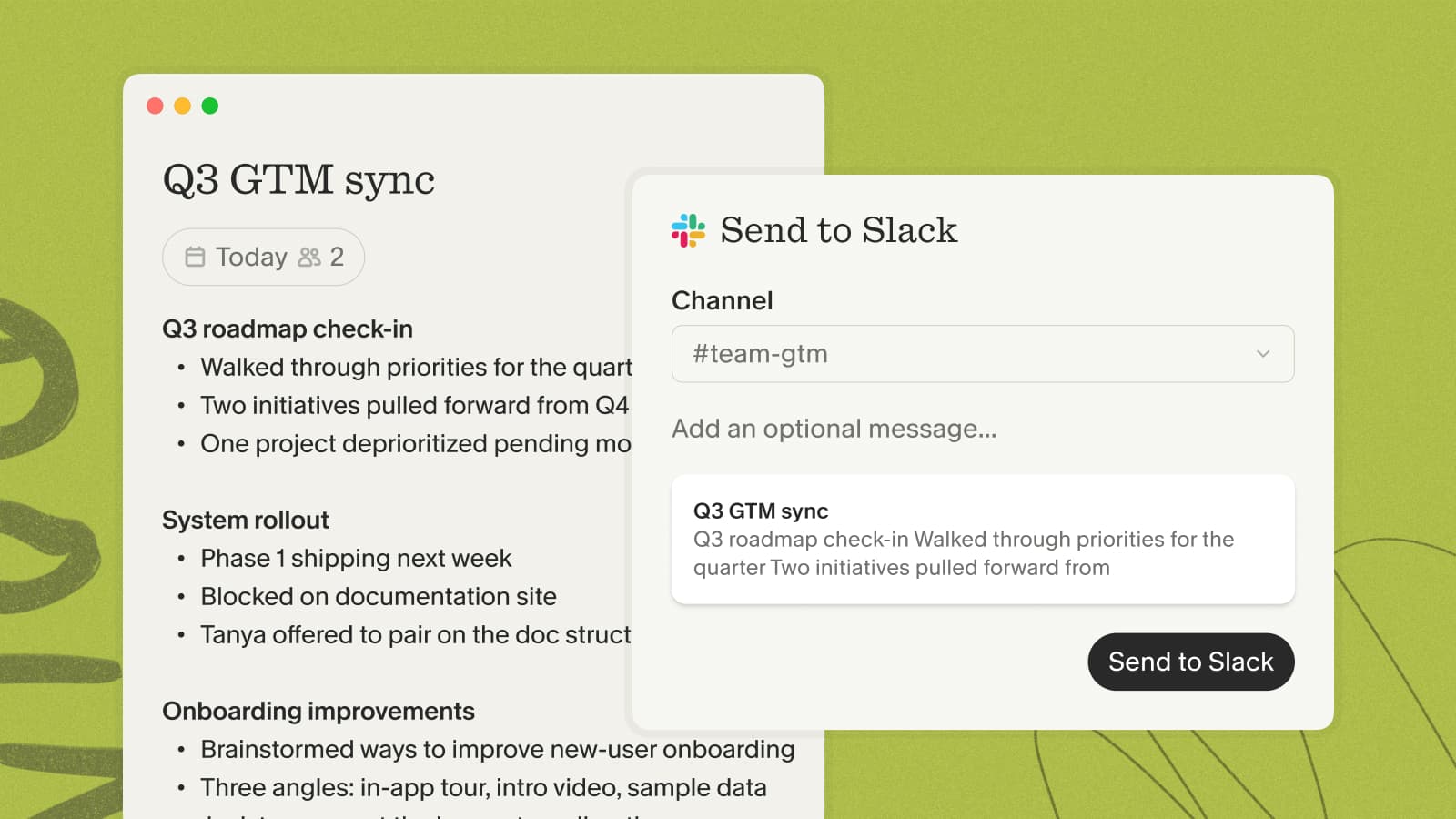
Share your meeting notes straight to Slack — post them to a channel yourself, or set a folder to auto-post new notes so your team stays in the loop.
The Slack integration is available on every plan, including Basic. It requires a Google Workspace or Microsoft 365 account; personal Gmail and Outlook.com addresses aren't supported.
Setting up the integration
- In Granola, open Settings → Connectors and find Slack.
- Click to connect, then authorize Granola for your Slack workspace in the browser.
- Choose the workspace you want to connect.
Sharing a note
Click the Slack button at the top of a note and pick the channel to post it to.
To post to a private channel, add the Granola app to that channel first using Slack's / command, and make sure your Granola and Slack accounts share the same email.
Auto-post from a folder
Open a folder, click Integrations in the folder header, and choose a Slack channel. New notes added to that folder post automatically — this applies only to notes added after you turn it on.
For the full walkthrough, see the Slack help doc.
Write and send Slack messages with Granola Chat (Beta)
Turn meeting outcomes into ready-to-send Slack messages without rewriting them yourself. Ask Granola Chat to draft a follow-up for a channel or teammate, then review and edit the message and destination before sending it.
To try it, switch to Granola's Beta release channel and connect Slack under Settings → Connectors. If you connected Slack previously, you may be asked to reconnect to enable message sending. Then ask Granola Chat to draft a message, review the text and destination, and approve it before it's sent.
Taking notes in Slack Huddles
Granola also works in Slack Huddles. It captures your device's audio, so there's no bot to add — just open a note when your Huddle starts and Granola takes notes like it does for any other call.