




Granola + Outlook
Overview
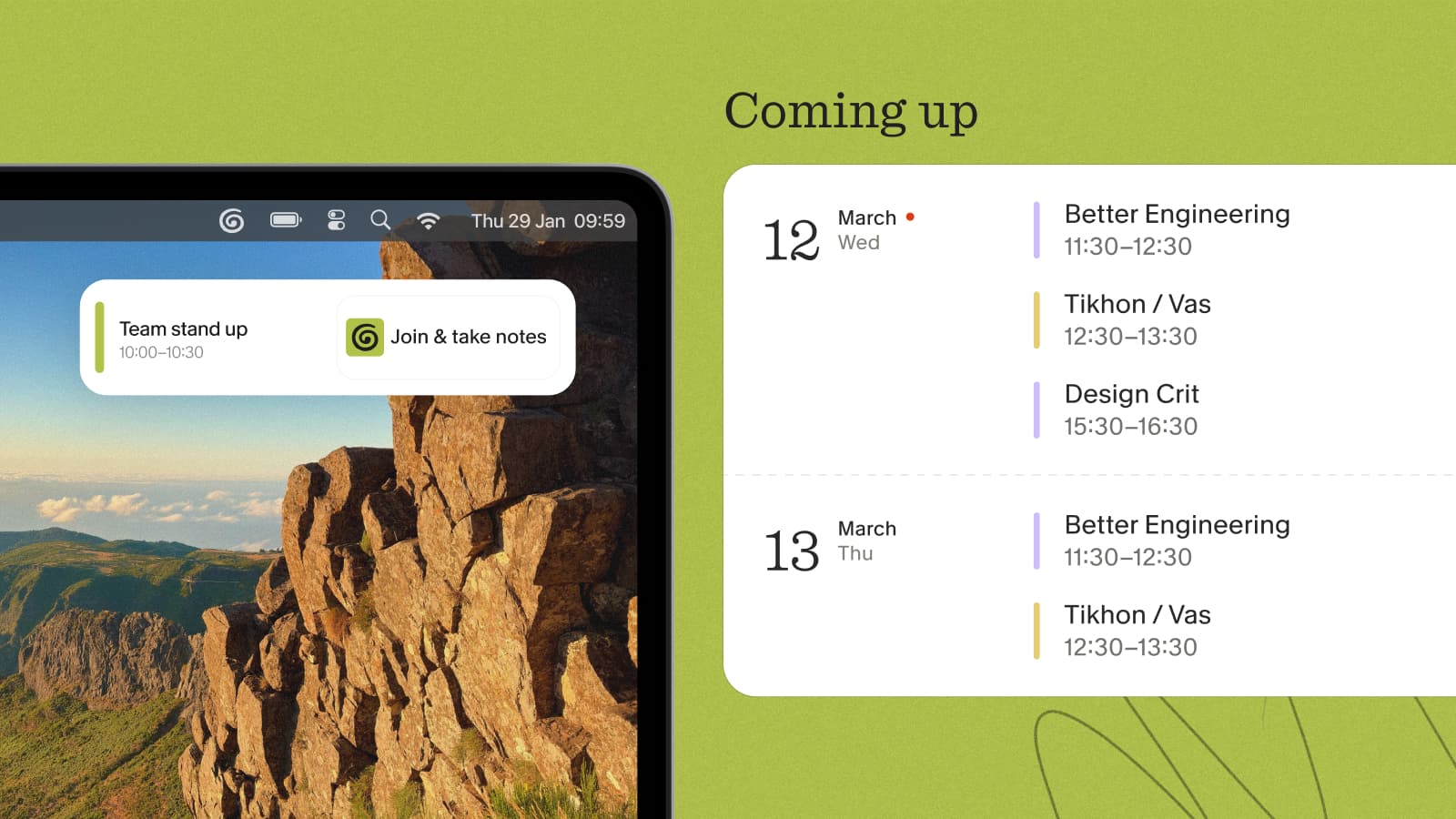
Connect your Outlook calendar and your schedule shows up right inside Granola — your upcoming meetings, a heads-up before each one starts, and a note ready for every event with the title and attendees already filled in. Granola only reads your calendar; it never edits or shares your events.
What you get
- Your upcoming meetings in the Coming up list, always current — changes sync within minutes, and declined events and Focus Time are left out
- A notification before each meeting starts, so you're ready to take notes
- Better notes — the event's title, time, and attendees give Granola the context to organize them
- Multiple calendars — add more than your primary from Settings → Calendar
Connecting your calendar
- Open Granola and click Sign in with Microsoft.
- Choose your account and approve calendar access — your admin may need to grant approval.
- Pick which calendars Granola should show — you can change these anytime in Settings → Calendar.
Works with cloud-based Microsoft 365 accounts (on-premises Exchange isn't supported). Granola transcribes only when you open a note for an event — it never auto-joins or records in the background. For the full walkthrough, see the calendar help docs in the sidebar.