



Granola + Google Calendar
Overview
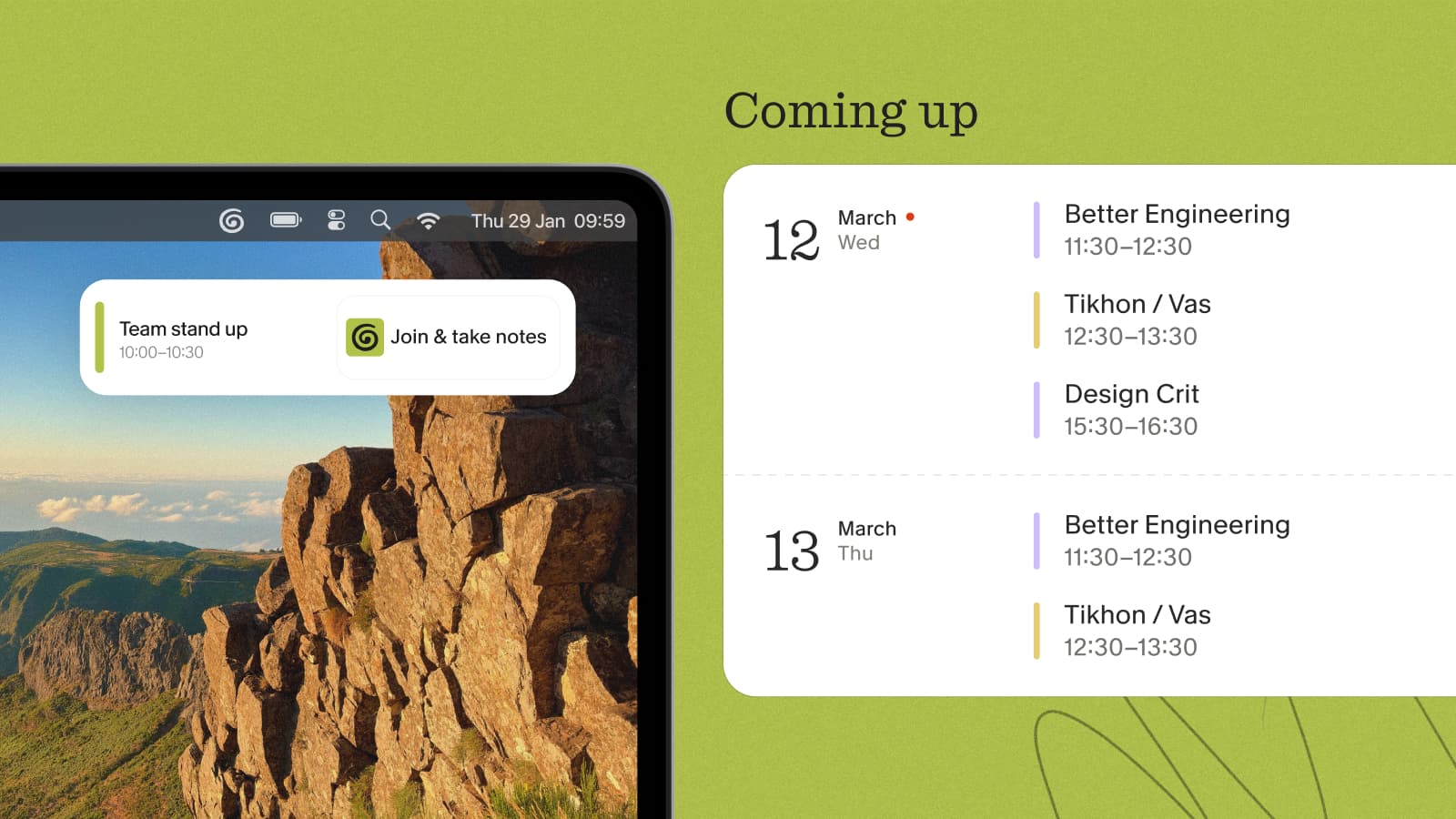
Connect your Google Calendar and your schedule shows up right inside Granola — your upcoming meetings, a heads-up before each one starts, and a note ready for every event with the title and attendees already filled in. Granola normally uses your calendar to show and contextualize meetings. If you use the scheduling beta, it can also create an event — but only after showing you a draft and receiving your approval.
What you get
- Your upcoming meetings in the Coming up list, always current — changes sync within minutes, and declined events and Focus Time are left out
- A notification before each meeting starts, so you're ready to take notes
- Better notes — the event's title, time, and attendees give Granola the context to organize them
- Multiple calendars — add more than your primary from Settings → Calendar
Connecting your calendar
- Open Granola and click Sign in with Google.
- Choose your account and grant calendar access when prompted.
- Pick which calendars Granola should show — you can change these anytime in Settings → Calendar.
Granola transcribes only when you open a note for an event — it never auto-joins or records in the background. For the full walkthrough, see the calendar help docs in the sidebar.
Schedule follow-ups with Granola Chat (Beta)
Granola Chat can help find a time and schedule your next meeting. Ask it to arrange a follow-up and it can check availability, suggest times, and prepare a Google Calendar invite with the attendees and meeting details.
To try it, switch to the Beta release channel in Granola, connect Google Calendar with write access, then ask Chat to schedule a meeting. Granola always shows you a draft first, so you can review the time, attendees, and details before approving the invite.