



Granola + Gmail
Overview
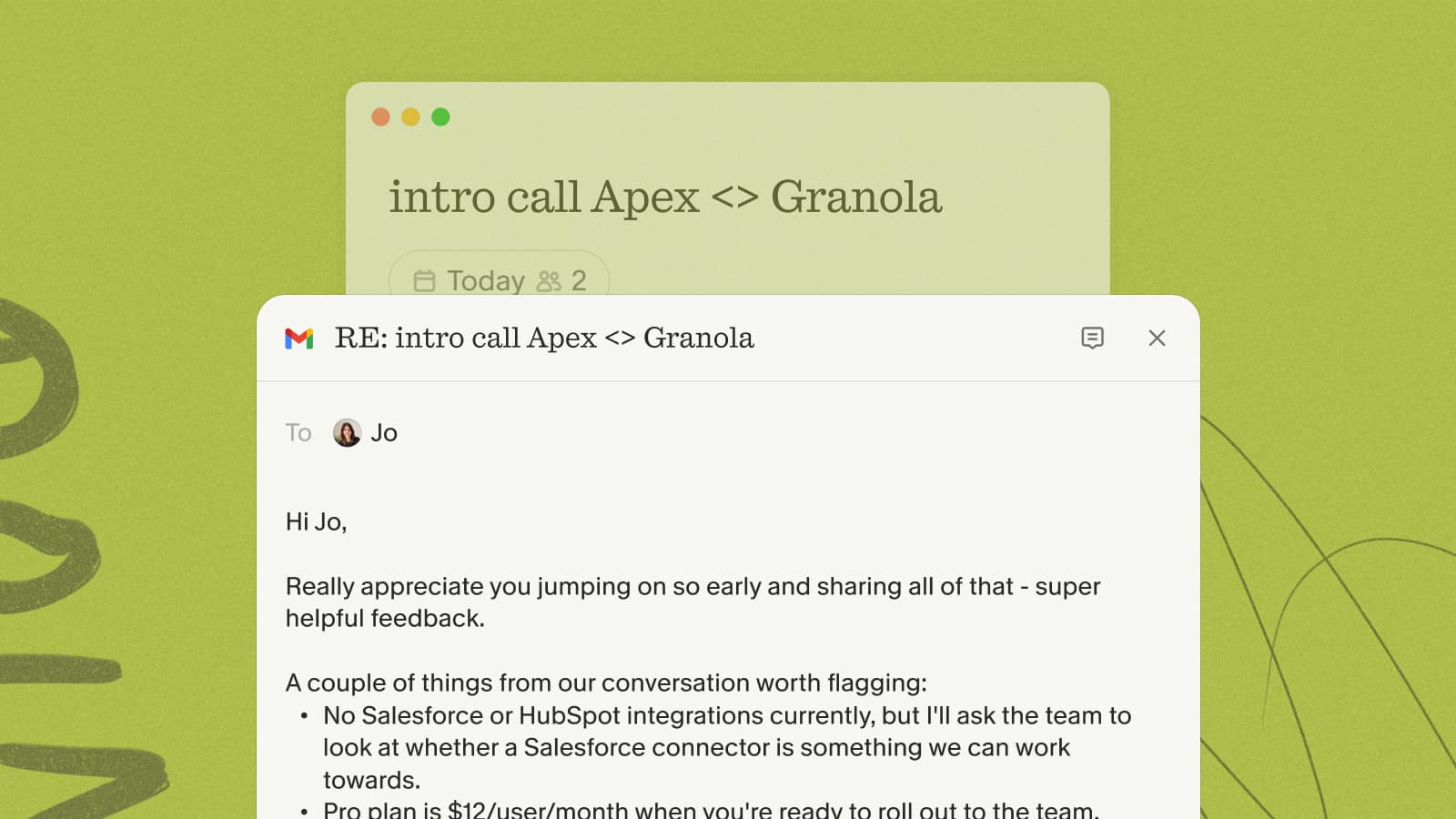
Connect Gmail to Granola to get follow-up emails drafted automatically after your meetings — written from the conversation, your calendar, and recent email threads, so the note goes out without you starting from a blank page.
Setting up the integration
- On the Granola home screen, find the Follow-up emails banner and click Connect Gmail, then Continue.
- Authorize Granola to view and send emails in the Google prompt that opens.
- Sign in with the same address you use for Granola — aliases aren't supported.
Requires a paid plan or trial and a Google (Gmail or Workspace) account. Outlook isn't supported yet. You can manage the connection anytime under Settings → Connectors → Gmail.
Sending a follow-up
Granola drafts a follow-up a minute or two after your notes are ready, for meetings with at least one external guest and no more than 10 people. Find drafts under Suggested follow-up emails on the home screen, or click View draft in the meeting note.
Edit the subject and body, add CC/BCC, attachments, or your signature, then hit Send — you'll have a few seconds to Undo if you change your mind.
For the full walkthrough, see the follow-up emails help doc.
Sharper pre-meeting briefs
Connecting Gmail also enriches your pre-meeting briefs on Business and Enterprise plans. Before an external meeting, Granola shows a few glanceable bullets of context in the chat panel, and with Gmail connected it can pull in recent email threads with the people you're meeting, so the brief highlights the latest from your inbox.