Building Snapshots: from several Friday demos to a shipped feature
October 6
Every Friday, we do what we've been working on at Granola. And that’s not just engineers, anyone who has something fun they wanna highlight can step up to the plate.
Sometimes it's a feature we're about to ship, sometimes it's a small paper cut someone wanted to fix. And mostly, it's just some cool thing we wanted to try.
We've just shipped Snapshots in Granola. It automatically adds screenshots of relevant slides, charts and designs that people share in a meeting to your notes. So you can remember what was shown alongside what was said, without having to take screenshots yourself.
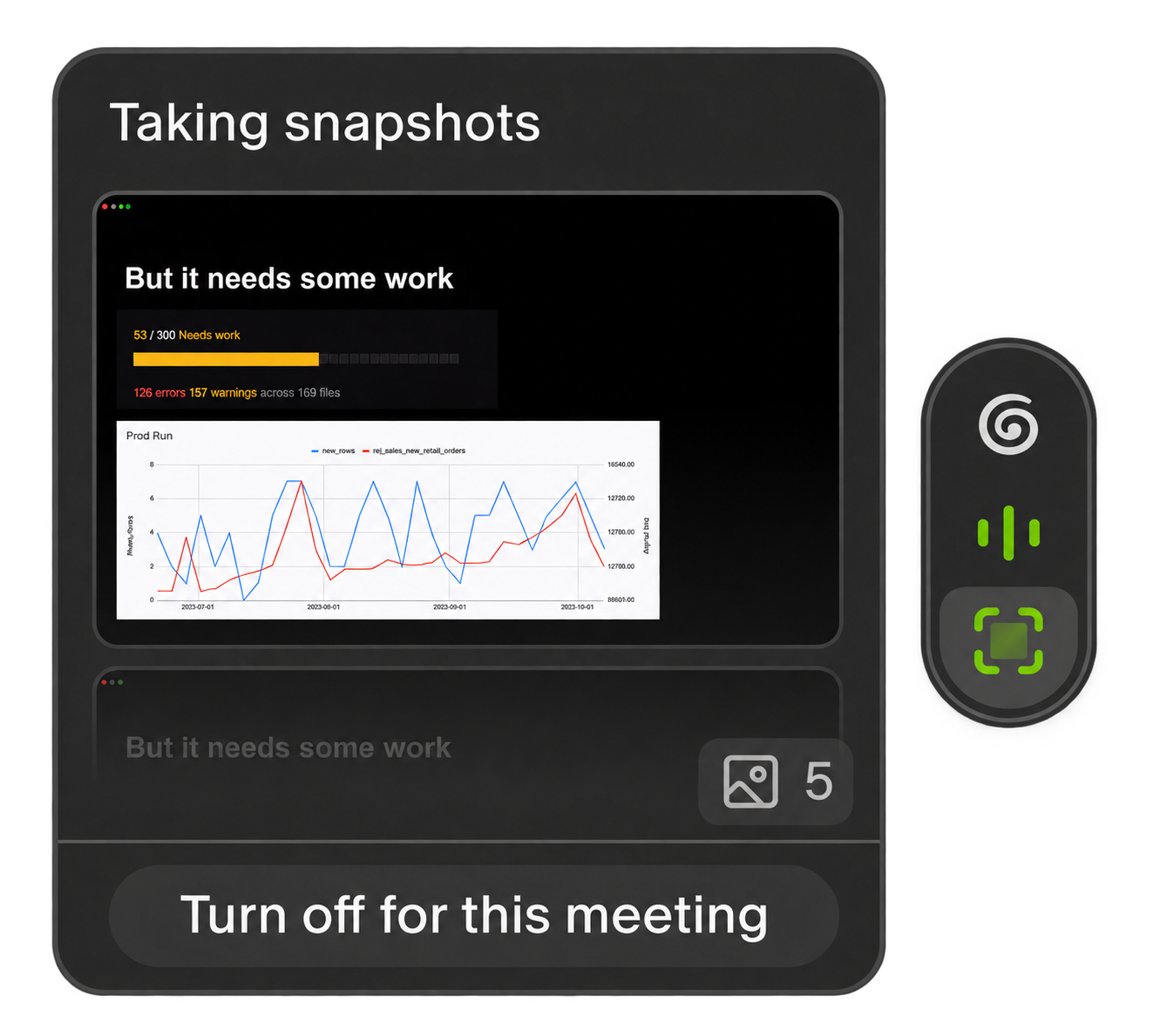
Snapshots today: the slides are there when you need them.
This one's special to me. It started as a small side project in January and I kept coming back to it alongside my main thread of work. I dug out some of the old demos, and it's quite fun seeing all the different shapes it went through before we got here.
“Cool demo”
Xiu Ting, a product manager at Granola, had the original thought: what if you could take a screenshot from the Nub?
The Nub is the little floating Granola thing that sits on your screen during a meeting. So I prototyped a screenshot button on it. You could click it, grab something from your screen, and add it to your meeting.
We called it NubSnap. mic drop
People were excited about it. The reaction was mostly: “Cool demo.” And it was useful! Having the thing someone showed you right there in your note made sense.
But it didn't really feel like Granola to me. You still had to reach for it, and remember to do that while someone was talking. The whole point of Granola is that you can be present in your meetings. Having to keep clicking a screenshot button wasn't quite that.
The January prototype. A button on the Nub lets you take a screenshot and attach it to the meeting.
What if Granola noticed?
Then I tried: what if you just took a screenshot normally, and Granola noticed?
The March demo was of a little prompt popping up, asking if you wanted to add the screenshot you took to the meeting. You could press G and it would attach it. So you could use the screenshot shortcut you already knew, and Granola would help with the next bit.
The March prototype. Take a screenshot as usual, then add it to the meeting from a little prompt.
Detecting when someone takes a screenshot is quite hacky but it actually felt kinda magical. You didn't have to learn a new way of taking screenshots.
But you did still have to remember to take the screenshot. If someone was flying through a deck, you were now trying to listen, look at the slides and grab the right bits before they disappeared.
You're not really being totally present when you're juggling all of that. So the next logical step was to work out if Granola could just figure out when someone was sharing their screen and save the useful bits to your notes with no input from you at all.
Useful, but still confusing
A lot has changed in Granola itself since March. We started using a companion Chrome extension to support other features like speaker labels and Enterprise-specific experiences. So by July, I had a version running internally through that extension: it could automatically save snapshots from shared screens in Google Meet.
When I rolled it out to the team for internal testing, the best feedback was basically: I didn't have to think about it, and the images were waiting in my note.
One teammate said their whole set of notes was better because of the slides. That felt great.
There was still a lot to figure out, though. Some people had missed the pop-up so they weren’t sure if they needed to enable it again for every meeting. They also said they wouldn't have thought to look for the images at the bottom of their note.
That kind of feedback was really helpful. The images were being saved for them, but they didn't quite know what Granola was doing.
Getting the screenshots into a note was only part of it. There were a lot of small things around that which we needed to make feel right.
Pim, Seungmee, Luke and Joel helped me work through this. Where do you put the screenshots so people find them? How do you make it obvious which images are being saved? And really importantly, how do you make it easy to turn off? Later feedback on the controls also helped us make the feature easier to find, with previews so you could see that an image had actually been taken.
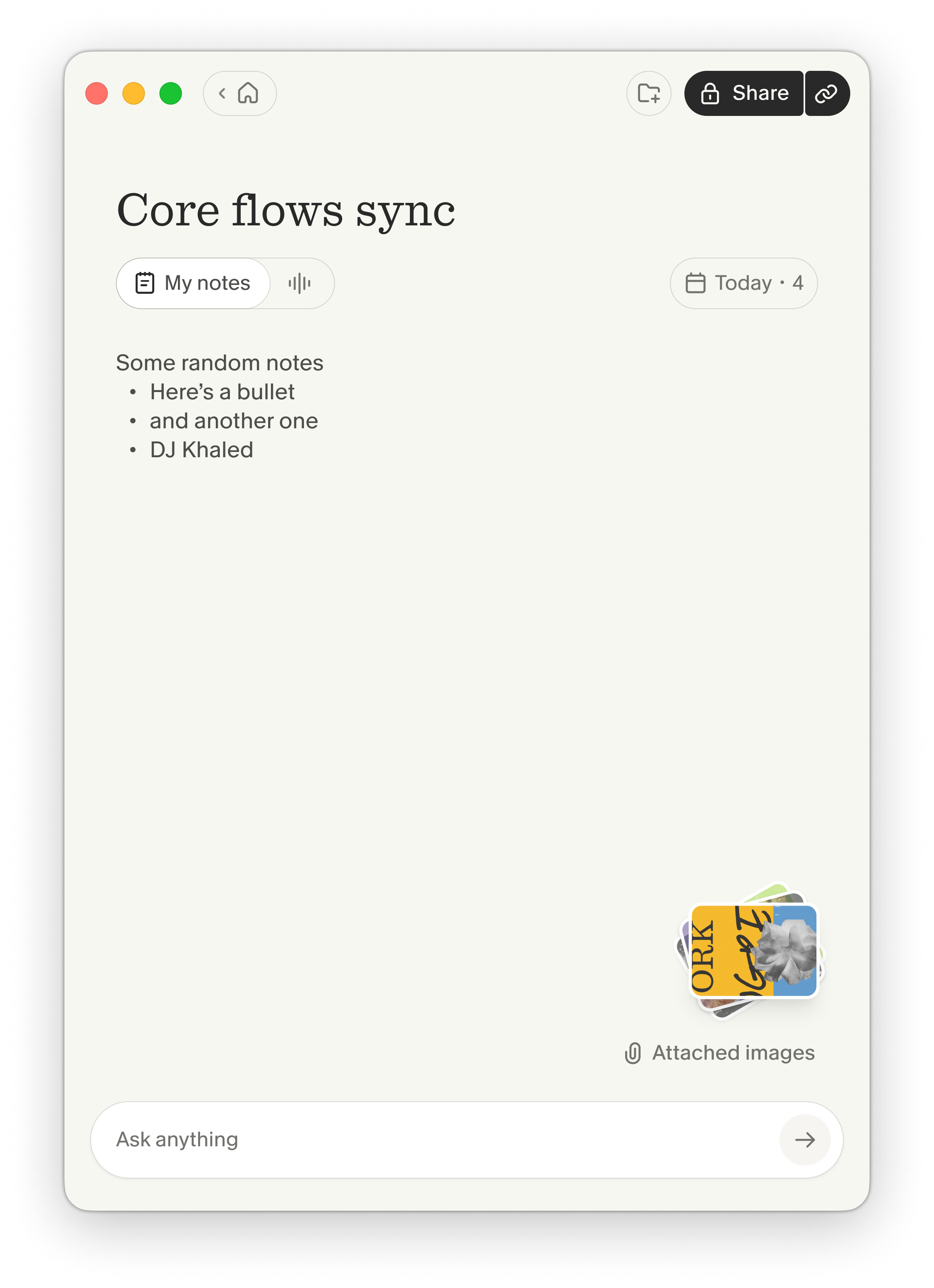
Where snapshots live today: a stack of images right in your meeting note.
The biggest limitation at this point was: it would only work in meetings you take on your browser. So many people use desktop apps for their meetings. Supporting just browser calls was not going to be enough.
The green light came from speaker labels
To make it work in desktop apps too, we needed a way to understand what was actually happening in those apps. That wasn't something we really had in Granola when I first demoed NubSnap in January.
This is where the work on speaker labels helped again. We’d explored using macOS's Accessibility APIs to enable Granola to work out who is saying what during a meeting, which allows for improved transcriptions. But it opened the door for us to do more with Accessibility APIs in the long run too - and that access was exactly what I needed for Snapshots.
Of course, for Snapshots to work people now needed to give Granola another permission in macOS. Asking everyone to go and do that separately was a lot of friction for something that was supposed to just work in the background.
But the same was true of Speaker Labels - so we decided to put Accessibility permission into onboarding. As soon as I heard of that change, I was like: okay, this is it. We had the detection work, and now there was a much smoother way for people to get set up. I could actually see how it would work in prod.
I hadn't planned for any of this back in January. I just knew the idea had cool potential, and kept coming back to it alongside my main thread of work.
Things change quickly in startups. You don't always need to keep pushing on the same problem every day. You keep the idea around, try things when you can, and notice when something else the team is doing gives you a reason to pick it up again.
For me, putting the permission into onboarding was that moment. This was still the same idea I'd been playing with for months, but it finally had the foundations to feel smooth in the product.
By September, we were demoing Snapshots in the Mac app, working with Meet, Zoom and Teams. Here's an early onboarding demo. There was still plenty to polish.
Early September. Bringing automatic snapshots into the Mac app, with another round of onboarding and UI changes still to come.
A week to bring it together
Once those pieces were there, the last stretch happened really quickly, and it came from none other than our CTO Nikola. He asked, “Can we ship this in a week?” And so we did.
We basically went from final rough demo to polished product in one weeklong sprint, which we couldn’t have done without our designers and design engineers coming together to help us ship it.
By now we had a handful of beta users on Snapshots so there was plenty of feedback to work from. People liked having the images in their notes, but we'd also seen where the experience was confusing: knowing it was on, seeing what had been saved, and finding the images afterwards. That final week was about bringing all of this together so it felt like one smooth feature.
Looking back, this is what I really like about our Friday demos. I could show a screenshot button because it seemed like a cool thing to try. It didn't need to be ready for production, and I didn't need to know that we'd eventually have a Chrome extension or accessibility detection to build on.
I could get feedback, go back to my main work, and come back to the idea when there was something new to try. The bit I kept caring about was the same: you should be able to be present in the meeting, and have the useful stuff there afterwards. Snapshots took a few different versions, a lot of feedback, and the right things falling into place to get there.
Really happy this one's out in the world.

Mehedi, Engineer