





How to use Granola with Cisco WebEx for bot-free meeting notes
February 21
TL;DR: Granola lets you stay present in WebEx calls and walk away with enhanced notes every time. You jot rough notes during the call, Granola transcribes what you hear and say, then enhances your notes when the meeting ends, all by capturing audio directly from your device. Setup takes under five minutes on Mac or Windows and requires granting microphone and Screen & System Audio Recording permissions in your OS settings. Let the other participants know you're using Granola to transcribe the call — Granola includes a video watermark and an automatic chat message to make that easy.
Granola runs on your laptop and uses your device's audio to generate notes, so it works with WebEx whether you join from the desktop app or a browser tab. This guide walks through OS permissions, device configuration, and post-meeting querying so you never lose what was said in a meeting again.
Why WebEx notes break down in enterprise environments
Many enterprise, healthcare, and financial services organizations use WebEx, and their IT teams set policies for the tools that support those meetingsules on what can connect to a meeting. Granola works differently: it runs on your laptop and uses your device's audio to generate notes, so there is no integration to configure with WebEx. Tell the other participants you're using Granola to transcribe the call, and get on with the conversation.
Granola's value in these conversations is recall: you can pay attention to the person in front of you and still have an accurate record afterwards.
Granola captures what comes through your speakers and your microphone simultaneously. The transcript labels these as "Me" and "Them" so you can follow the conversation when you review it later. Because Granola does not store audio, only the text transcript and your notes persist after the meeting ends.
Prerequisites for setup
Before starting, confirm you have the following:
- A Granola account signed in via Google Workspace, personal Gmail, or a Microsoft account (Granola currently supports Google and Microsoft single sign-on only).
- The Granola desktop app installed on Mac (macOS 13 minimum, macOS 14.2 or above recommended) or Windows. Download and follow the quickstart guide to get going.
- Admin privileges on your machine. On macOS, you need admin access to grant Screen & System Audio Recording permissions, as detailed in JumpCloud's macOS permission guide.
- Cisco WebEx installed as a desktop app or accessible in your browser. Both work with Granola since it captures system audio regardless of whether WebEx runs in an app or a tab.
- Calendar access granted to Granola so it can detect your upcoming WebEx meetings automatically.
Step 1: Configure Granola for WebEx audio capture
Granola does not integrate with WebEx via an API. Instead, it listens to whatever audio your computer produces and receives, so setup focuses on matching audio devices rather than connecting accounts.
The critical rule: the speaker output and microphone input you use in WebEx must match the default audio devices your operating system has selected. If those diverge, Granola captures the wrong source and you will see flat audio lines with no transcription activity.
On Mac:
- Open System Settings > Sound.
- Under Output, note which device is selected (for example, MacBook Pro Speakers or your headphones).
- Under Input, confirm your microphone is selected.
- Open WebEx, navigate to Audio & Video settings, and verify that the Speaker and Microphone fields match the devices you confirmed in System Settings.
The Granola transcription troubleshooting guide confirms this: "Granola uses your default sound devices in macOS or Windows to transcribe audio from your meeting, so these settings need to match the devices you're using in your virtual meeting software."
On Windows:
- Open Settings > System > Sound and check the default Output and Input devices.
- To set a communications-specific default, right-click the device in the Playback tab and select Set as default communications device.
- Match these to the devices selected in WebEx Audio settings.
Step 2: Grant audio capture permissions on Mac and Windows
Missing permissions are the most frequent reason Granola shows flat lines during a WebEx call.
On macOS Sonoma and Sequoia:
Navigate to System Settings > Privacy & Security > Screen & System Audio Recording and toggle Granola on. Also grant access under Microphone in the same Privacy & Security panel.
The permission label "Screen & System Audio Recording" can feel counterintuitive since Granola does not capture video. Apple's API design explains this requirement. As Apple's own documentation explains, the Screen & System Audio Recording permission controls both visual and audio system capture. Granola requests it solely to access system audio and does not record or save any video at any point.
The first time Granola runs during a meeting, macOS will prompt you to confirm these permissions. Click Allow to complete setup. You will not need to revisit these settings again.
On Windows:
Windows 11 automatically grants the necessary permissions during installation. You do not need to adjust any manual toggles.
Step 3: Run your first WebEx meeting with Granola
Once permissions are in place, the workflow is straightforward. Follow the Granola first-time setup guide if you have not completed initial onboarding.
- Open Granola before or as your WebEx meeting starts. Granola detects the meeting from your calendar and opens a note automatically.
- Join your WebEx call as you normally would, through the desktop app or browser.
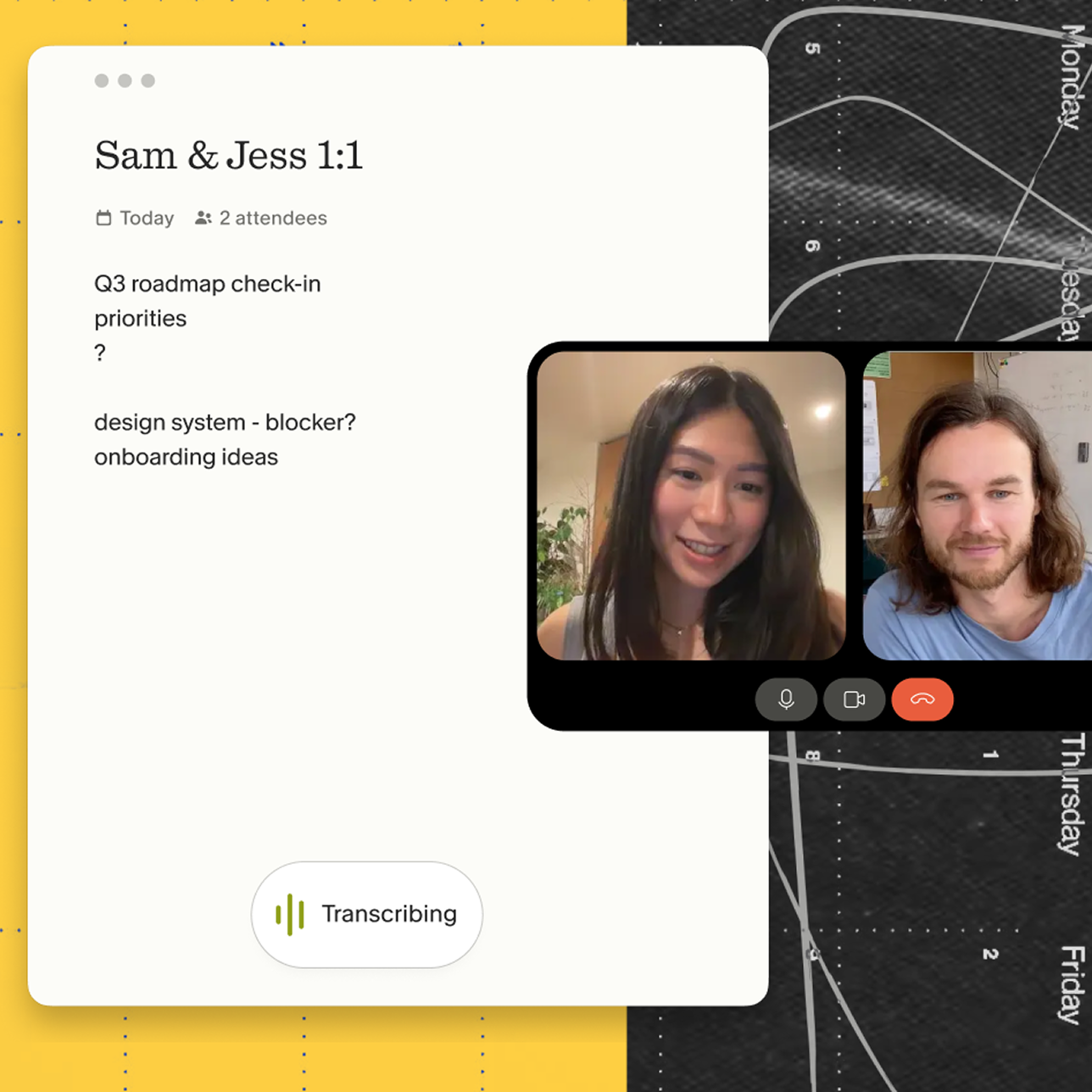
- Confirm audio capture by watching for the green animated bars at the bottom of the Granola note window. Granola's live transcription documentation describes these as "green dancing bars at the bottom of the screen to show Granola is capturing audio." If the bars are flat, stop here and recheck device matching from Step 1.
- Jot rough notes in the Granola notepad as the conversation develops. Write only what matters: key decisions, interesting quotes, questions to follow up on. Granola fills in the surrounding context from the transcript.
- End the meeting and let Granola enhance your notes. Your rough notes guide the AI: write "pricing concerns" and Granola finds every pricing discussion in the transcript. Your original notes stay in black, AI additions appear in gray, and you control what stays. The result is structured notes shaped by your judgment, not a generic summary.
Users who run this workflow consistently report staying more present in conversations.
"This tool allows me to be fully present in every candidate conversation without worrying about taking detailed notes in real time. The amount of time this tool has saved me on a daily basis is truly incredible." - Syl C. on G2
Using Granola effectively on WebEx
Handling consent
Tell the other participants that you're using Granola to transcribe the call, and ask for their agreement at the start of the session. A clear, low-friction way to do this: "I use an AI notepad on my desktop to help me focus on our conversation instead of typing notes. Is that okay with you?"
The Granola in-meeting notice documentation covers how to handle consent messaging. Telling participants you're using Granola to transcribe the call is your responsibility, and Granola gives you built-in ways to do it: a video watermark and an automatic chat message.
Using templates for structured meetings
Granola lets you create custom note templates so your notes land in a structure that matches your workflow. Set one up with your core discussion sections before the call. When Granola enhances your notes, it maps its output to your structure rather than generating a generic summary.
"Most tools force you into a set number of meeting types/outline structures, but, while Granola offers a core set for you to adopt, they have made it super easy and flexible to create your own for whatever purpose you have." - Andy C. on G2
Querying across past meetings
After several WebEx sessions, the real value of Granola's chat with your meetings feature becomes apparent. Ask questions like "What concerns came up about login flows?" and receive citations pulled from every relevant session. This is the difference between a transcript tool and an organizational memory: past meetings become searchable infrastructure rather than buried documents. You can also use Granola's integrations to pipe enhanced notes into tools like Notion, where synthesis work already lives.
Troubleshooting common WebEx audio issues
Audio not detected (flat lines or missing voice):
Check that the output and input devices in WebEx Audio settings match the devices in System Settings (Mac: System Settings > Sound, Windows: Settings > System > Sound). If you switched to Bluetooth headphones after opening WebEx, update both settings and rejoin the meeting. The Granola transcription troubleshooting page walks through device matching in detail. For missing voice specifically, the Granola optimization guide recommends setting your Mac's microphone input volume to maximum to improve transcription accuracy.
"WebEx is blocking Granola":
WebEx is not blocking Granola. What looks like a WebEx block is almost always a missing macOS permission. Return to System Settings > Privacy & Security and verify that both Microphone and Screen & System Audio Recording show Granola as enabled. Because Granola captures system audio rather than integrating at the application level, there is no WebEx API layer for IT policies to block.
Ready to stay present in your next WebEx meeting?
Download Granola for Mac or Windows, connect your calendar, and run your next WebEx session. You will have bot-free transcription working in under five minutes. No training required, no IT friction, and built-in ways to let WebEx participants know
Granola is active.
Frequently asked questions about Granola and WebEx
Does Granola record WebEx video?
No. Granola captures audio and generates a text transcript. No video is stored at any point during or after the meeting.
No. Granola runs on your laptop and uses your device's audio to generate notes, so it does not join the call as a participant. Let the other participants know you're using Granola to transcribe the call — Granola includes a video watermark and an automatic chat message to make that straightforward.
Granola runs on your laptop or phone and uses your device's audio to generate notes. Let the other participants know you're using Granola to transcribe the call — Granola includes a video watermark and an automatic chat message for exactly that.
Does Granola store the audio after transcription?
No. Audio is transcribed in real time on Mac and Windows, then discarded. Only the transcript and your notes are saved. See the transcript auto-deletion documentation for details.
Is Granola compliant for use in healthcare or financial services WebEx calls?
Granola is SOC 2 Type 2 certified and GDPR compliant, and does not allow third-party AI providers to train on your data. However, Granola is not HIPAA compliant today. If your organization operates in a regulated industry, check with your compliance team before using Granola with regulated data.
Key terms glossary
System audio capture: The method Granola uses to listen to audio your computer plays through speakers or headphones, rather than joining a meeting via URL. This is why no bot ever joins the call as a participant. You can still let people know Granola is running with the video watermark or an automatic chat message.
Screen & System Audio Recording (macOS): The macOS privacy permission category that controls both screen capture and system-level audio output. Granola requires this permission to access audio, not to capture any video.
Default communications device (Windows): The audio device Windows routes voice communication apps through. Granola uses this device for audio capture on Windows, separate from the default playback device.
Transcript enhancement: The Granola process of taking rough notes you typed during a meeting and expanding them with context from the full transcript, producing structured notes without requiring you to review the entire transcript manually.
Bot-free capture: A capture architecture that adds no participant to the meeting. Granola runs on your laptop or phone and uses your device's audio to generate notes. Granola offers built-in ways, like a video watermark or an automatic chat message, to let people know it's in use.