





How to sync Granola notes to Notion for a searchable research repository
February 21
TL;DR: Granola's native Notion integration and Zapier connector let you push structured meeting data directly into a Notion database, available on the Business plan at $14/user/month. Instead of hunting through flat documents for what a customer said three months ago, you query a tagged, filterable research repository. Adding Zapier Professional ($19.99/month billed annually) automates the entire transfer. The payoff: every customer interview becomes a citable database entry your whole team can search, not a private document that disappears when someone leaves.
Research insights don't die during the interview. They die afterward, buried in a document titled "Customer Call - March" that nobody opens again. Running multiple customer interviews each week creates a compounding retrieval problem. Each conversation captures real customer language, unfiltered reactions, and patterns that shape good product decisions. But when those conversations live in flat documents, the only way to find something specific is to remember exactly where you filed it and when. Most research debt is not a capture problem. It's a retrieval problem.
Granola is the input layer: it captures high-fidelity notes while you stay in the conversation. Notion is the storage and action layer: it tags, filters, and connects those notes to roadmap items. Together, they turn scattered conversations into a queryable engine for product decisions.
Why meeting notes die in docs but live in databases
A flat document is a graveyard for context. You write the notes, close the tab, and the insight is effectively gone unless you happen to remember what you called the file. A Notion database works differently because every entry carries structured properties: date, customer segment, sentiment, feature tags, and a direct link back to the full Granola note. When a stakeholder asks "How many customers mentioned this?" a flat document forces you to manually scan everything. A database lets you filter by "Feature Tag" in seconds and return a count with sources. Research stored in personal notes also walks out the door when someone leaves. A database belongs to the organization.
Two properties make the biggest difference:
- Customer segment: Filter feedback by company size or plan tier to show stakeholders that multiple enterprise customers raised the same concern, not one anecdotal data point.
- Feature tags: Connect conversations to roadmap items so you can pull all relevant feedback during prioritization discussions.
Granola captures and structures the conversation. Notion is where the work moves forward.
Setting up the Granola to Notion workflow
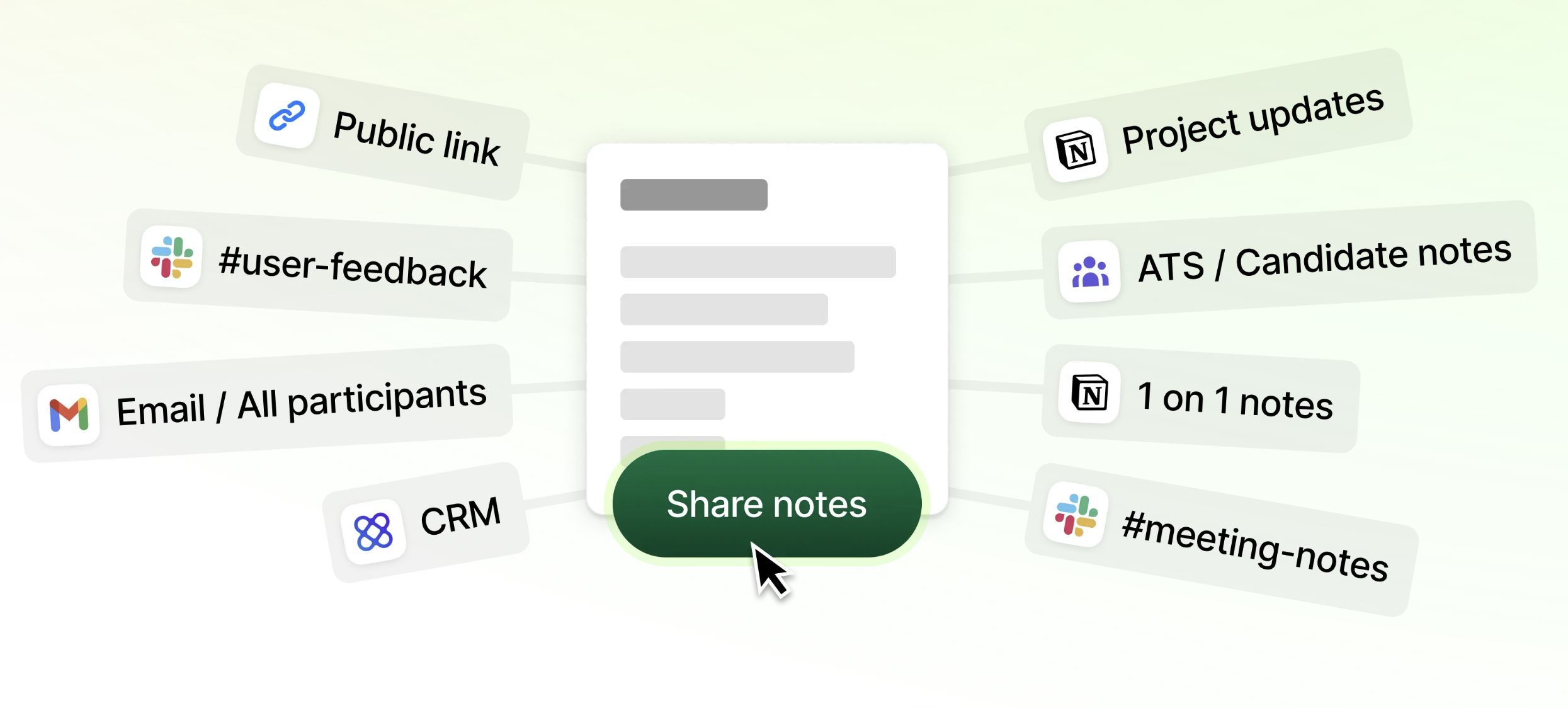
Granola offers two paths for getting notes into Notion: a native Notion integration built directly into the app, and a Zapier connector for teams that want automated folder-based triggers and more complex routing. Both require a Business plan or above.
Step 1: Preparing your Notion database for research
Build the database before connecting anything. The schema below captures the essential properties for research retrieval:
| Property | Type | Purpose |
|---|---|---|
| Interview date | Date | Filter by time period |
| Participant name | Text | Find all feedback from one customer |
| Company | Text | Filter by account or segment |
| Customer segment | Select | Enterprise / Mid-market / SMB |
| Feature tags | Multi-select | Connect to roadmap items |
| Sentiment | Select | Positive / Neutral / Negative / Mixed |
| Granola link | URL | Direct link back to full notes |
| Summary | Text | Auto-fill from Granola's summary output |
| Key themes | Text | Your synthesis layer |
| Status | Select | Raw / Synthesized / Shared |
The Granola link column is the most important property in the schema. Granola doesn't store audio files at any point: audio is transcribed in real time and then deleted. The shared link gives teammates access to the enhanced notes and lets them query the transcript through Granola's chat function.
Step 2: Mapping Granola fields to Notion properties
Granola's AI-enhanced notes produce several structured outputs that map cleanly to Notion properties:
| Granola output | Notion property | Notes |
|---|---|---|
| Meeting title | Page title (Name) | Auto-mapped in most Zap setups |
| Meeting date | Interview date | Maps directly to date property |
| Participants / Attendees | Participant name | May need parsing for primary interviewee |
| Summary | Summary text or page content | {"Map to body via \"Add Block to Page\" for longer summaries"} |
| Action items | Key themes or body content | Surfaces commitments clearly |
| Granola share link | Granola link (URL) | Preserves transcript access for teammates |
One practical constraint: Notion text properties cap at 2,000 characters, so longer summaries may truncate if you map them to a property field. Mapping the summary to the page content body instead, using Zapier's "Add Block to Page" action, avoids truncation and produces richer entries. The Granola-Notion Zapier integration supports both "Create database item" and "Add Block to Page" actions, so you can chain them in a single Zap for complete entries.
Step 3: Automating the transfer
Option A: Native Notion integration (recommended for most teams)
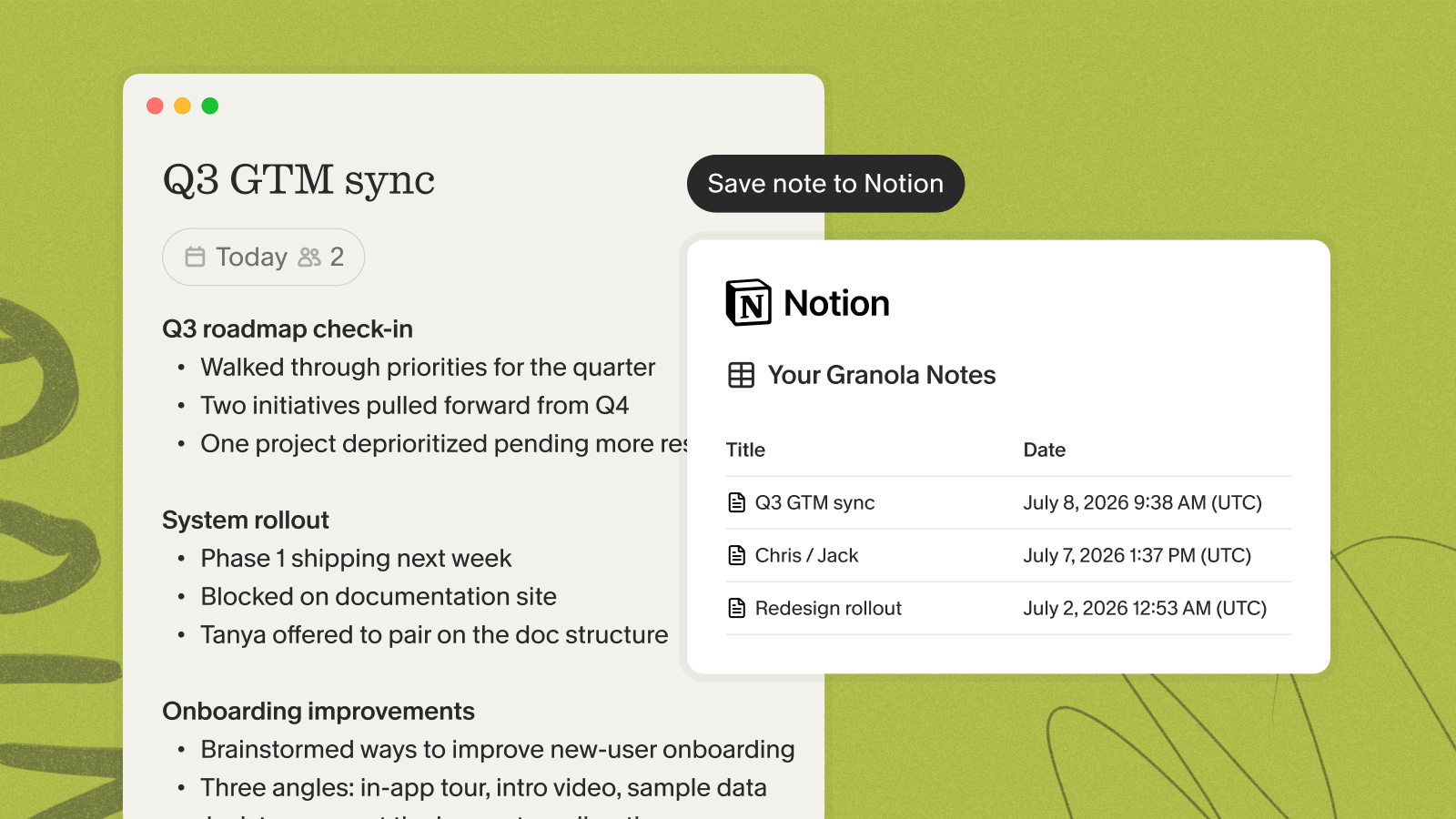
Granola's native Notion integration is the simpler starting point. Go to Granola Settings, click Integrations, select Notion, and authorize the connection through your browser. Once connected, you push individual notes to Notion directly from the note sidebar, which works well for a high-touch research workflow where you want to review each note before it lands in the database.
Option B: Zapier automation (recommended for volume)
The Granola Zapier integration offers two triggers for routing notes automatically:
- Note Added to Granola Folder: Fires when any note lands in a designated folder. Create a "Customer Interviews" folder in Granola, and every note placed there auto-syncs to your Notion database without manual action.
- Note Shared to Zapier: Fires when you manually share a note to Zapier from the sidebar, giving you more control over which notes enter the database.
For a research workflow handling multiple interviews weekly, the folder trigger is the more practical choice. Zapier's Granola automation guide covers step-by-step mapping instructions.
Monthly cost for the full pipeline:
- Granola Business: $14/user/month, which includes Notion, Slack, HubSpot, and Zapier integrations (per the Granola pricing overview)
- Zapier Professional: $19.99/month billed annually (or $29.99/month on monthly billing), covering 750 tasks per month
- At approximately 6 interviews weekly, you'll conduct roughly 26 interviews monthly, each generating one Zapier task, using well under 30 of your 750-task monthly allowance
- Total for a single user: approximately $33.99/month on annual billing for the fully automated pipeline
From interview to searchable database entry
The integration pays off most when it fits into the interview process without adding friction. Here's how the full lifecycle works with this stack.
Pre-meeting: Open Granola and select a custom interview template with your discussion guide sections pre-structured: context, problem exploration, feature reactions, closing.
During the interview: Jot rough bullets at key moments: a surprising quote, a feature request, an emotional reaction. Tell participants at the top of the call that you're using Granola to transcribe, then stay present for follow-up questions while Granola captures the context you'll enhance afterward.
Post-meeting: When the call ends, Granola enhances your rough bullets with relevant context from the transcript. You review the output, confirm the key takeaways reflect what actually happened, and either push to Notion via the native integration or let the Zapier folder trigger fire automatically.
In Notion: The new database entry appears with interview date, participant name, and Granola link pre-filled. You add customer segment, sentiment, and feature tags, then the entry is queryable by anyone on the team. Colleagues who weren't in the interview can follow the Granola link and explore the transcript context directly:
"I can easily share my notes with my colleagues as well, and. we can all chat with the meeting transcript so everyone can see the full context of the meeting, even if they weren't there." - Jess M. on G2
The cumulative result: a research database that grows with every interview without adding meaningful overhead per session. When a stakeholder challenges your findings as anecdotal, you filter by feature tag and show the count. When a new PM joins the team, they query the database instead of asking you to reconstruct six months of discovery work.
Advanced: Using Raycast to query your repository
The Granola Raycast extension reduces retrieval friction to near zero for Mac users. Press your Raycast shortcut, type a search term, and get matching notes in seconds without opening a browser or navigating Notion filters.
Practical queries:
- Search "SSO" to pull every customer conversation mentioning single sign-on across all interviews
- Search "pricing" to surface budget friction mentions before a pricing review with leadership
- Use `@granola` in Raycast AI to ask: "What were the most common onboarding complaints?" and get a synthesized answer with source citations
The extension also includes direct Notion export, so you can push notes from Raycast into your database without opening either app.
Every conversation you capture now becomes a queryable entry your whole team can search later. Download Granola for Mac or Windows, connect your calendar, and run your next customer interview. Then open Settings, click Integrations, connect Notion, and start turning conversations into a database your whole team can query.
Frequently asked questions
Does Granola send audio recordings to Notion?
No. Granola processes audio in real time and deletes it immediately after transcription, so what flows into Notion is note text, summary, and a link to the shared Granola note where teammates can query the transcript. You can verify the full security architecture on Granola's security page.
Can I map custom AI templates to specific Notion views?
Yes. Granola's custom templates let you define structured sections for different meeting types, and each template produces consistently structured output that maps to the same Notion database properties, keeping your database uniform even when interview formats vary.
Is this workflow SOC 2 compliant?
Granola achieved SOC 2 Type 2 certification in July 2025. Third-party AI providers are contractually prohibited from training on your data. Consult your compliance team before using Granola with regulated data.
What plan do I need to access the integration?
The Business plan at $14/user/month includes Notion, Slack, HubSpot, and Zapier integrations. The free plan does not include integration access.
Can I backfill historical notes into an existing Notion database?
Yes. Granola's historical notes export function lets you pull down past notes, and the Raycast extension also supports individual note export to Notion. The exporting notes documentation covers the full range of available options.
Key terms glossary
Research repository: A structured, searchable database of customer and stakeholder conversations organized by properties like date, segment, and theme, so any team member can query past findings without asking the PM who ran the research.
Synthesis: The process of turning raw interview notes into patterns, themes, and actionable insights. In this workflow, Granola handles the first layer (enhanced notes from rough bullets), while Notion's tagging and filtering handles the second layer (pattern recognition across multiple interviews).
Verbatim: An exact customer quote captured in the transcript. Verbatim quotes carry more persuasive weight with stakeholders than paraphrased summaries because they're clearly direct evidence rather than interpretation.
Taxonomy: The classification system applied to research entries, specifically the set of values in your Feature Tags and Customer Segment properties. A well-designed taxonomy makes the difference between a searchable database and an unusable collection of inconsistent tags.
MCP (Model Context Protocol): A standard protocol that allows compatible AI tools, including Claude, ChatGPT, and Cursor, to access your Granola meeting notes when you request it. MCP is available on Business plans and above and connects your research repository to other AI-powered workflows without manual export.