





How to take meeting notes on a phone while walking (without typing)
June 12
TL;DR: Typing while walking is dangerous and produces poor notes. Ambient audio capture paired with AI enhancement solves this. Open Granola on your iPhone before the walk, tap once to start, then put your phone in your pocket. Your device microphone picks up everything in person, and Granola transcribes in real time. After the walk, you enhance the notes in seconds. No typing, no fumbling, no lost action items. Setup takes under five minutes, and the workflow works for in-person walks with one other person or phone calls through Granola's built-in dialer.
You know walking meetings deliver real value, but documenting them properly remains unsolved. Search for advice and you'll find dozens of articles on why you should walk during meetings. None of them tell you how to capture what was said without ruining the walk to do it. This guide fills that gap with a practical, phone-based workflow.
Why walking meetings are becoming more popular
Walking meetings have moved from executive habit to mainstream practice, and the research behind them is solid enough to justify the shift.
Health benefits of walking meetings
Back-to-back video calls typically keep you stationary during cognitively demanding work. Meeting culture makes this worse: Even two hours of calls means two hours without movement. Converting two meetings per week into walks adds meaningful physical activity without changing your schedule or requiring any additional time commitment.
Creativity and problem-solving advantages
The Stanford University study on walking and creative thinking is the most cited evidence here, and the results are striking. Participants walking on a treadmill facing a blank wall and those walking outdoors both produced twice as many creative responses compared to people sitting down. If you're using meetings to work through product strategy, investor positioning, or a difficult hiring decision, getting outside changes the quality of thinking.
Why traditional note-taking doesn't work while walking
| Method | Why it fails |
|---|---|
| Typing on your phone screen | One-handed, glare, accidental touches, screen distraction |
| Voice memo (manual) | Raw audio with no structure, no action items |
| Typing on return to desk | Key decisions fade before you sit down |
The typing-while-walking problem
Research into mobile text entry while walking confirms what anyone who has tried it already knows: It is genuinely difficult. The WalkType study found that walking vibration and divided attention significantly degrade touch screen typing performance. Even with an adaptive system designed to compensate for movement, uncorrected error rates remained high. Without that compensation, you're fighting the device as well as the conversation.
Safety and focus issues
There's a more serious dimension here. Distracted walking injuries numbered in the tens of thousands in the US over a recent nine-year period, with cell phone use as a primary cause. Looking at your phone screen while navigating a sidewalk or crossing a street shifts cognitive resources away from your surroundings at exactly the moment you need them.
Manual transcription after the walk
You lose more than you expect when you try to write notes at your desk after returning. By the time you sit down, the specific phrasing a candidate used to describe why they're leaving their current role, or the exact objection a VC raised about your unit economics, has already faded or merged with other conversations from the same day. Manual reconstruction is slow and incomplete.
How transcription works on iPhone
We've found the solution separates audio capture from note structure. You capture everything during the walk and AI turns it into structured notes after.
How ambient audio capture works
Ambient audio capture means your device microphone picks up the conversation continuously without any interaction. You're not pressing a button every time something important is said, and you're not opening your screen to type. The microphone runs, the app transcribes in real time, and your phone stays in your pocket for the entire meeting.
On iPhone, Granola's iOS transcription uses your phone's microphone to capture in-person conversations and outbound phone calls placed through Granola's built-in dialer. iOS system constraints mean it cannot capture audio from separate apps like Zoom or Meet running simultaneously on the same device, so this workflow is purpose-built for in-person walking meetings and walking phone calls.
AI transcription and summarization
Raw transcription gives you useful data but no structure. The human-in-the-loop step turns a transcript into something actionable. With Granola, you jot rough notes during the walk (or nothing at all), then click "Enhance notes" afterward. The AI finds relevant transcript context to support your structure, and AI additions appear in gray next to your black notes so you can edit or delete anything. See how AI-enhanced notes work in the help docs.
Phone setup checklist for walking note-taking
Prepare your phone before stepping outside. Complete these steps for a smooth capture experience:
Before the walk:
- Open Granola on iPhone and confirm microphone permissions are active
- Check calendar sync is active so your upcoming meeting appears in the app
During the walk:
- Tap once to start capture in Granola before stepping outside
- Place phone in a jacket or breast pocket with the microphone facing outward
- Use headphones for any remote phone call
After the walk:
- Open Granola and tap "Enhance notes" within the meeting record
- Review AI additions in gray, edit or delete anything that doesn't fit
- Use Granola Chat to extract specific action items or decisions
Choosing the right app
Minimalist setup matters when you're heading outdoors. Granola's iOS app syncs your calendar automatically, so your meeting appears before you leave. One tap starts capture, and you don't configure anything or interact with your screen during the meeting.
Accessibility and permissions
Grant microphone access to Granola in iOS Settings before your first walk. For in-person capture, disconnect Bluetooth audio devices so Granola uses the phone's built-in microphone. For phone calls placed through Granola's built-in dialer, a wired or Bluetooth headset is fine.
In-person walking meetings vs. remote walking calls
The workflow differs depending on whether the other person is beside you or on the other end of a phone line.
Walking with one other person
In-person walking meetings are the cleanest use case for mobile capture. Your phone microphone is designed to pick up voices at close range.
"It takes accurate notes, and I stay in the conversation instead of writing. For in-person meetings, the mobile app is just as precise as the web version." - Cory M. on G2
Taking remote calls while walking
On iPhone, Granola captures call audio when you use Granola's built-in dialer. This iOS feature works for one-on-one phone conversations and transcribes the call. For video conferencing apps running on the same phone, iOS system architecture prevents Granola from accessing that audio stream. The workaround is joining the video call from your desktop where Granola captures device audio natively, then using a headset to participate while you walk. This workflow is iOS-specific and not available on Android.
Audio quality considerations for each
In-person meetings benefit from keeping your phone in a consistent position throughout the walk. Remote calls benefit from dedicated headphone microphones positioned close to your mouth, reducing pickup of wind and environmental noise. If you're in a noticeably noisy environment near a road or a crowded area, reduce your pace while speaking key information or flag those sections for review after the meeting.
How to use Granola for walking meeting notes
Granola is built as an AI notepad for back-to-back meetings, and the iOS app brings that to your pocket for meetings that happen outside.
Setting up Granola mobile
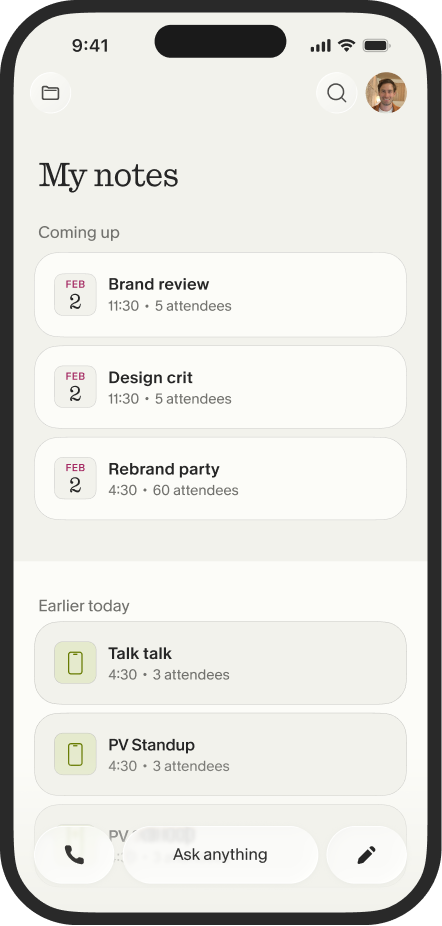
Download the Granola iPhone app, then connect your Google or Microsoft calendar. The app syncs automatically and displays upcoming meetings. You'll finish setup in under five minutes. The writing notes on iOS guide covers the note-taking interface for when you want to add rough bullets mid-walk.
Starting a walking meeting capture
Before a scheduled meeting with two or more attendees, Granola sends a notification. For walking meetings, tap the notification to start capture before stepping outside. The app begins transcribing immediately. Put your phone in your pocket and start walking.
If you want to jot a note mid-walk, the iOS note-taking interface stays accessible without disrupting capture. But the workflow doesn't require it. Granola transcribes everything regardless of whether you type anything.
Reviewing notes after your walk
Back at your desk, open the meeting in Granola and tap "Enhance notes." Your rough notes appear in black, AI additions from the transcript appear in gray, and you can edit or delete anything. Left the notepad blank? You get a structured summary from the full transcript. Typed anchors like "pricing objection"? Granola builds context around them.
"Granola nails exactly what I need: clean, reliable meeting transcripts and smart follow-up summaries without any fluff. I use it for nearly every call to stay focused on the conversation instead of scribbling notes. The follow-up action items are especially useful. Huge time saver." - Verified user on G2
Capturing and acting on action items mid-walk
The post-walk workflow is where value compounds. A transcribed walking meeting becomes a searchable, queryable record within Granola's broader meeting history.
How AI extracts action items automatically
After enhancing your notes, ask Granola Chat direct questions: "What were the three commitments made during this call?" or "What were the open questions about pricing?" The system searches the transcript and returns source-linked answers. You can also apply a Recipe from Granola's saved prompt library to format output as a follow-up email, a Product Requirements Document (PRD) input, or a list of next steps by owner. Decisions, names, dates, and tasks are all present in the transcript, and Granola Chat surfaces any of them on request.
Following up after the meeting
Granola Chat handles questions across your entire meeting history, not just the most recent conversation. When a follow-up call references last week's walk, ask "What did we agree about the partnership terms in our last conversation?" and get a cited answer from the earlier transcript.
"I love that I can use Granola for absolutely everything: every single conversation I have. The notes it generates are incredibly helpful on their own, but the real magic is the follow-up discussion in the chat. Being able to turn those notes into content assets, reflections, and new ideas is priceless." - Christel C. on G2
Try Granola for free: Download the iOS app, connect your calendar, and take your next walking meeting without typing a single note.
FAQs
Can I take meeting notes on iPhone while walking?
Yes. Granola's iPhone app captures in-person conversations and phone calls using your device microphone with no interaction required after you tap start. iOS limitations prevent capturing audio from video conferencing apps running on the same device, so this workflow works best for in-person walks and phone calls placed through Granola's built-in dialer.
What if I'm walking outside with wind noise?
Keep your phone in a soft-lined pocket with the microphone facing outward, and use headphones with built-in microphones for call audio. If conditions are severe, reduce your pace while speaking key information so the microphone captures your voice more cleanly against the ambient noise.
Is my audio stored after transcription?
Granola captures device audio and transcribes it in real time, then deletes the audio. No recording is stored.
Key terms glossary
Ambient audio capture: The process of continuously picking up conversation audio through a device microphone without requiring user interaction during the meeting.
Device audio: Audio captured directly through your phone's microphone or your computer's system audio to produce a transcript.
AI notepad: A note-taking tool where you write rough notes and AI enhances them with transcript context, keeping your judgment in control of what gets documented.