





How to connect Granola and Slack for automated meeting summaries
February 21
TL;DR
Granola's Slack integration pushes meeting summaries directly to your team's channels, eliminating manual copy-pasting. Setup takes under 5 minutes: Settings > Integrations > Slack, authorize the connection, then route notes by folder to the right channel. Available on Business plans ($14/user/month) and above. Granola runs on your laptop or phone and uses your device's audio to generate notes; let the other participants know you're using it to transcribe the call.
Granola's Slack integration automatically sends meeting summaries from your Granola notes directly into the Slack channels your team already uses. It's built for teams on Business plans who want meeting insights, decisions, action items, customer feedback, visible to everyone without any manual sharing step. Instead of notes accumulating in private folders, your whole team stays informed in real time, in the tool they're already in.
How the Granola + Slack integration works
Once the meeting ends, you enhance your notes with one click. Granola merges your rough notes with context from the transcript to produce a structured summary. The AI-enhanced notes step is the checkpoint: the summary only posts to Slack after you've enhanced your notes, so you review the output before anything reaches your team.
Because Granola captures system audio and deletes it after transcription, only the text summary travels to Slack. No audio file is stored or transmitted. Third-party AI providers are contractually prohibited from training on your data.
Step 1: Connect Granola to your Slack workspace
Before starting, confirm two things. First, your account is on the Business plan ($14/user/month) or above, since integrations aren't included on the Free plan. Second, in Settings > General, your default link sharing is set to anything other than "Private", if it's Private, the Slack share button won't appear on your notes.
With that confirmed, the connection takes under 3 minutes:
- Open Settings by clicking your avatar in the bottom left of the Granola app.
- Select Integrations from the settings menu.
- Click Connect next to Slack. Granola opens an OAuth authorization page in your browser.
- Authorize the connection and return to Granola. Slack now shows as active in your integrations.
The full setup reference lives in Granola's Slack integration docs and the Slack help article. One prerequisite worth noting: connect Slack using the work account already connected to Granola. The Granola docs integration page also covers the full permission scope Granola requests, which you can share with your IT or security team if needed.
Step 2: Configure automated summary channels
Once connected, you have two sharing modes.
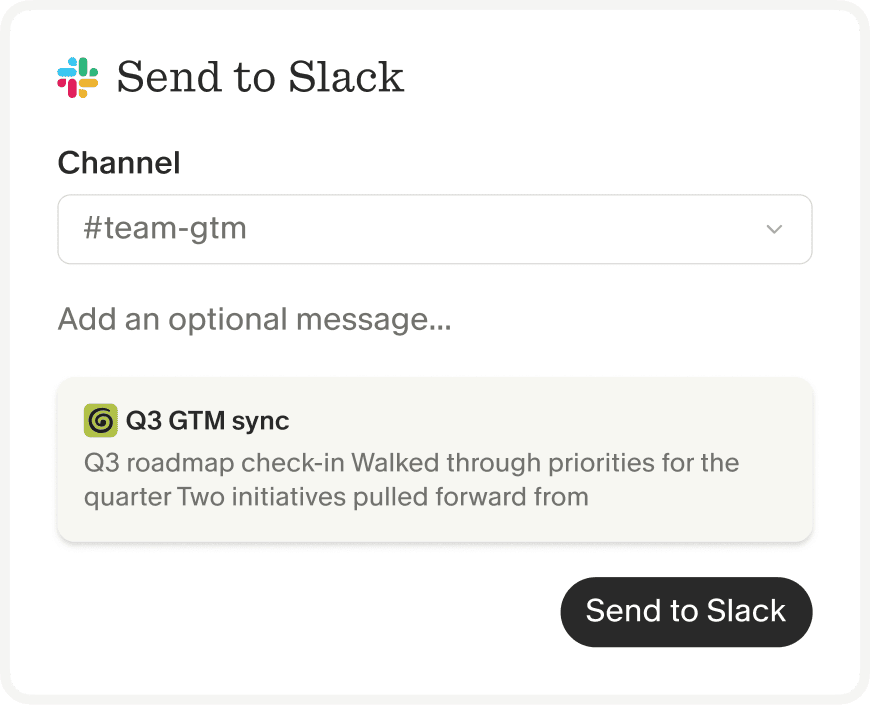
Per-note sharing (manual): After enhancing any meeting note, click the Slack icon in the top right of the note, then select the channel you want to post to. This gives you full control over what gets shared and where.
Folder-based automation: Click the three dots next to any folder in the Granola sidebar and select "Integrations." Choose a Slack channel, and every new note added to that folder posts there automatically. This removes the manual posting step entirely.
For a research-heavy workflow, this maps cleanly to your existing folder structure: a "Customer Interviews" folder routes to `#customer-insights`, a "Stakeholder Syncs" folder routes to `#product-updates`, and a "Sprint Planning" folder routes to `#eng-sprint`. The routing happens without you remembering to send anything.
For more advanced routing, Granola's Zapier integration extends this with keyword-based filtering and conditional logic. The Granola-to-Slack Zapier template filters meetings by title keyword, generates a focused summary, and posts it to your target channel. You can also use Zapier to post directly to a private Slack channel for workflows where the native integration doesn't reach. For private channels using the native integration, invite the Granola app first by running `/invite @Granola` inside the channel in Slack, then select that channel in your folder integration settings.
Step 3: Customize your notification format
The summary Granola posts to Slack isn't a raw transcript dump. It reflects the structure of your enhanced notes: key decisions, action items, and discussion points organized by the template you applied during the meeting. According to Granola's pricing and features overview, summaries also include an AI chat link, so teammates can ask follow-up questions directly from the Slack message without opening the full note.
You control the note structure through Granola's template system. Templates define which sections appear in the enhanced note, which in turn shapes what lands in Slack. A customer interview template might surface pain points, verbatim quotes, and next steps as distinct sections that read cleanly in a channel thread.
"I appreciate being able to customize note formats and access full transcripts for reference. The note summaries Granola creates are also a standout, making it easy to get concise or detailed notes as needed." - Catherine S. on G2
For teams who want teammates to go deeper on any summary, Granola's meeting chat guide explains how the AI chat link in the Slack post works for follow-up queries across the full transcript.
Best practices for organizing summary channels
A structured Slack setup determines whether summaries get read or ignored. These patterns work well for teams running regular discovery alongside delivery work:
- Create dedicated channels by team function to route summaries where they'll be read. Research teams might send discovery interviews to `#research-notes`, sales teams route call recaps to `#sales-calls`, and support leads pipe customer feedback sessions to `#support-insights`. Keeping these unfiltered means anyone on the team sees what was actually said, not a filtered relay.
- Use a separate channel for internal syncs `#eng-syncs`, `#leadership-updates`, or similar for standups, sprint reviews, and cross-functional alignment meetings. Routing these through a different folder keeps operational signals distinct from external-facing ones, whether the primary audience is engineering leads, department heads, or executives.
- Thread discussions under the posted summary rather than reacting with emojis. When someone spots a pattern in a Granola summary, threading keeps the context attached to the source.
- Tag relevant teammates directly in the Slack post after it lands. A quick `@sales-team` when a call summary surfaces a recurring objection, or `@engineering-leads` when a leadership sync produces a key decision, reaches the right people without scheduling another meeting to relay the insight.
"Love that I can easily share my notes with my colleagues as well, and that we can all chat with the meeting transcript so everyone can see the full context of the meeting, even if they weren't there." - Jess M. on G2
The Granola team's own Slack story reflects this internally: "People post Granola notes from standups into Slack." Applying the same habit to research channels creates a consistent rhythm that teams can rely on rather than check in on.
Troubleshooting common integration issues
The Slack share button isn't appearing on my notes. Check Settings > General in Granola and confirm your default link sharing is set to anything other than "Private." Full details are in the Slack integration docs.
My summary didn't post to the channel. If you're posting to a private channel, confirm the Granola app has been invited to that channel first. Run `/invite @Granola` inside the channel, then re-try posting.
The email on my Slack account doesn't match Granola. If you've recently changed your Slack email, disconnect and reconnect the integration. Go to Granola > Settings > Integrations > Slack > Disconnect, then reconnect with the updated credentials.
I need routing control beyond what the native integration offers. Granola's Zapier integration supports keyword-based filtering, private channel posting, and custom message formatting for more complex workflows.
Granola isn't detecting my meetings automatically. Granola's notifications settings guide covers meeting detection alerts. If meetings aren't appearing, the calendar sync troubleshooting guide walks through common sync issues.
Connect Granola to Slack in under 5 minutes
Open Granola's app settings, navigate to Integrations, and authorize the Slack connection. Create a folder for your next meeting series, whether that's sales calls, engineering syncs, or leadership updates, set a folder-level rule to route notes to the right channel, and run your next session. The summary reaches your team automatically, without you remembering to send it.
If you're exploring Granola's broader integration ecosystem, the full integrations overview covers connections to Notion, HubSpot, Salesforce, Attio, and Zapier.
Download Granola for free on Mac or Windows, connect your calendar, and run your next meeting.
FAQ
Does Granola join my Slack huddles as a bot?
No. Granola transcribes meetings by capturing system audio directly from your device, so Slack huddles, Zoom, Google Meet, Teams and WebEx all work the same way. Let the other participants know you're using Granola to transcribe the call.
Can I send notes to private Slack channels?
Yes. Invite the Granola app to the private channel first using `/invite @Granola` in Slack, then select that channel in your folder integration settings or per-note share menu.
Is the Slack integration available on the free plan?
No. The Slack integration requires the Business plan at $14/user/month or higher. The Free plan doesn't include integrations.
Can I review the summary before it posts to Slack?
Yes. For per-note sharing, enhance your notes first, review the output, then click the Slack share button. Nothing posts until you initiate it.
What account type do I need to connect Slack?
Use the work account connected to Granola when authorizing the Slack connection.
Key terms
Device audio capture: The method Granola uses to transcribe meetings by listening to your computer's system audio output.
Enhanced notes: The output Granola produces by merging your rough notes with context from the transcript after a meeting ends. This is the document that gets posted to Slack.
Folder-based automation: A Granola feature that automatically posts any new note added to a specific folder to a designated Slack channel, without requiring a manual share step for each meeting.
MCP (Model Context Protocol): A standard protocol that lets compatible AI tools such as Claude and ChatGPT access Granola meeting notes. Available on Business plans and above.
Zapier: A third-party automation tool that connects Granola to Slack for advanced workflows including keyword filtering, private channel posting, and custom message formatting beyond what the native integration supports