





Granola + HubSpot integration: automatic CRM updates from meeting notes
February 21
TL;DR: Connecting Granola to HubSpot means your customer conversation notes stop living in a private document and start living where your team can find them. The native integration (available on Business and Enterprise plans) lets you sync enhanced meeting notes directly to HubSpot Contact records in a single click. For fully automated syncing without any manual step, Zapier bridges the gap. The result is a CRM that reflects real customer conversations, not blank activity logs.
Research insights, deal context, and customer feedback live in private notebooks while your team lives in HubSpot. If it's not logged in the CRM, it doesn't exist for anyone but you.
Connecting Granola to HubSpot closes that loop. You jot your notes during the meeting, Granola enhances them with relevant context from the transcript, and then you push that polished summary directly to the right HubSpot record.
Why sync meeting notes to HubSpot?
Syncing to HubSpot solves two distinct problems at once:
- Institutional memory: Every customer conversation becomes searchable inside the tool your whole team already uses, not buried in one person's notes folder.
- Zero admin: The post-call data entry that currently pulls you away from your next meeting drops to a single click.
"The time saved in adding notes to CRM and removed from admin follow ups. Great integrations." - Rakeem L. on G2
Prerequisites for the integration
Before you connect, verify you have the following in place:
- A Granola Business or Enterprise plan. The free plan does not include the HubSpot integration. Business starts at $14 per user per month, and you can verify current plan features on the Granola pricing and plans page.
- A work email connected to Granola. Use the same work account in Granola and HubSpot when authorizing the connection.
- HubSpot admin access. You need Super Admin permissions or App Marketplace access within HubSpot to authorize the connection.
- A synced calendar. Granola matches notes to HubSpot records using meeting attendee emails, so your calendar needs to be connected to surface accurate attendee data.
How to set up the direct HubSpot integration
The official HubSpot integration guide walks through each step in detail. Here's the full setup path.
Step 1: Connect your HubSpot account
- Open Granola and click your avatar in the bottom left corner.
- Navigate to Settings, then select Integrations.
- Click Connect next to HubSpot.
- A browser window opens, prompting you to log in to HubSpot and authorize permissions.
- Grant access and return to Granola. The integration status updates to connected.
Make sure both your Granola account and your HubSpot account use the same email address.
Step 2: Sync a note to HubSpot
After a meeting, open the note in Granola and click Share. Select HubSpot from the sharing options. Granola suggests Contact records based on attendee email addresses from the calendar invite, so the right match usually surfaces immediately. Confirm the selection and the note appears in the HubSpot activity timeline.
The sync includes the meeting title, date, participant list, your enhanced note body, and any action items Granola extracted. If you've used custom templates in Granola, those sections carry over as formatted text in the HubSpot activity note.
This sync happens one note at a time. You choose which record receives the data after each meeting, giving you control over what gets logged and where. For fully automatic syncing with no manual step, use Zapier (covered in the next section).
Step 3: Verify the result in HubSpot
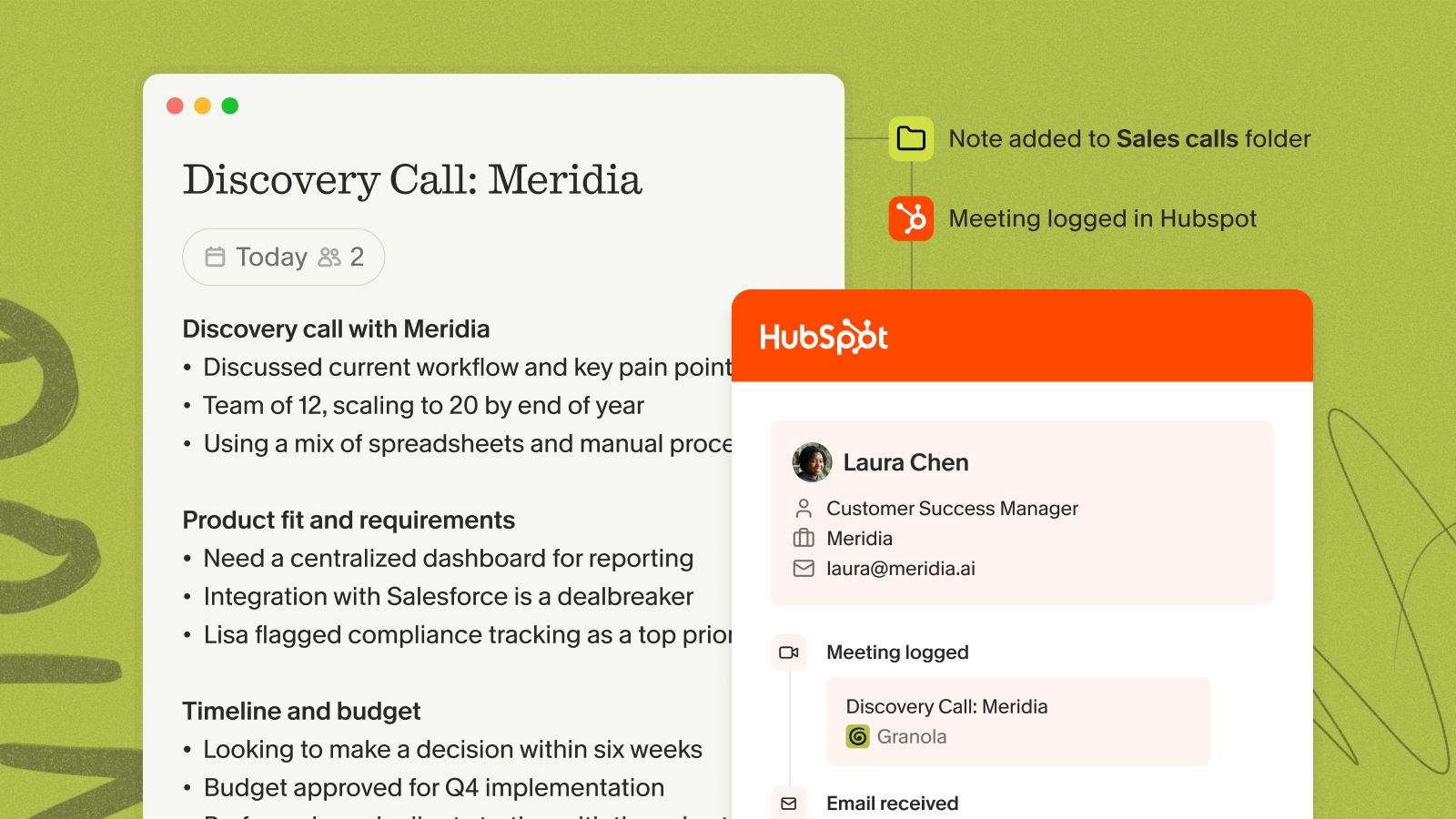
Navigate to the HubSpot record you selected and check the Activity tab. Your enhanced Granola notes appear there, timestamped and attributed to the meeting. Teammates with access to that record can read the full conversation context without asking you for a debrief.
"Granola does not need to join your meeting. I really like their offering and upgraded to the Business plan." - Verified user on G2
Alternative connection method: Zapier
When you need syncing to happen automatically (without a manual share step after each meeting), Zapier is the right tool. The Granola + HubSpot Zapier integration supports two primary triggers:
- A new note sent from Granola
- A new note added to a specific Granola folder
From either trigger, you build a Zap that looks up the relevant HubSpot Contact and posts the note to it. The Zapier automation guide for Granola covers how to configure the lookup step to match on email address, so the note lands in the right place without manual selection.
Zapier also handles scenarios the native integration doesn't cover: routing notes based on folder assignment, pushing data to multiple HubSpot objects in one workflow, or triggering actions in other tools at the same time. Granola's Zapier integration documentation covers the trigger configuration in detail, and the broader integrations overview shows how this connects to the wider automation ecosystem.
How sales and product teams use the integration
Enriching deal records after sales calls
After a discovery call, open the meeting note in Granola. Granola has already enhanced your jotted notes with relevant quotes from the transcript. The summary already contains budget signals, timeline information, and next steps. Share it to the relevant HubSpot Contact record, and the pipeline context is updated before you've closed your laptop.
Sales managers see deal context without asking reps for updates. Reps stop spending time at the end of each day filling in CRM fields they already captured in Granola during the call.
"Granola nails exactly what I need: clean, reliable meeting transcripts and smart follow-up summaries without any fluff. The follow-up action items are especially useful. Huge time saver." - Verified user on G2
Centralizing customer research in the shared record
The integration also solves a quieter problem: insights that stay trapped in private tools and never reach the colleagues who need them. When a meeting surfaces a specific workflow frustration or a feature request with real context behind it, that insight should appear on the Contact record in HubSpot where the rest of your team can see it too.
You customize your note template to match the structure of a research session, capture what matters during the conversation, then share the polished summary to HubSpot after the call. Your findings become part of the shared customer record, not just your personal Granola archive. Research that previously lived only in your notes folder now shows up for every colleague who touches that account.
Troubleshooting common sync issues
Notes aren't appearing on the HubSpot record. Check that your Granola and HubSpot accounts use the same email address. Mismatched accounts break the connection at the authorization level.
The wrong contact is being suggested. Granola suggests matches based on attendee email addresses pulled from the calendar invite. If the invite used a different email than the HubSpot Contact record, the match won't surface. Update the Contact's email in HubSpot to match the one on the calendar invite, or select the correct record manually during the share step.
A contact doesn't exist in HubSpot yet. The native integration does not create new contacts automatically. Create the Contact record in HubSpot first, then return to Granola to sync the note. For teams who regularly meet prospects not yet in the CRM, a Zapier workflow with a "find or create contact" step handles this automatically.
Get started
Connect HubSpot in Granola Settings > Integrations, and your next customer call's notes can reach HubSpot in a single click, or automatically with Zapier. Download Granola for Mac or Windows and connect your calendar to get started.
If you're on a free plan and want to see what's included before upgrading, the integrations overview lists what's available at each tier. For advanced automation needs, start with the Zapier setup guide alongside the native connection.
Frequently asked questions
Does Granola create new HubSpot contacts automatically?
No. The native integration syncs notes to existing records only. To create contacts automatically, set up a Zapier workflow with a "find or create contact" step before posting the note.
Can I sync to custom HubSpot objects or custom fields?
The native integration does not support custom objects or custom field mapping. Use Zapier to route data to custom objects or map specific note sections to custom properties.
Is the HubSpot integration available on the free plan?
No. The HubSpot integration requires a Business or Enterprise plan. Check the current pricing page for up-to-date plan details.
Key terms
Activity timeline: The HubSpot record section where logged interactions (calls, emails, notes) appear in chronological order. Granola notes appear here after syncing.
Contact matching: The process Granola uses to suggest which HubSpot Contact to associate a note with, based on attendee email addresses from the calendar invite.
AI-enhanced notes: Granola's feature that takes your jotted notes from a meeting and fills in supporting context from the transcript. The enhanced version is what syncs to HubSpot.
Zapier trigger: The event in Granola (a new note, a note added to a folder) that kicks off an automated Zapier workflow to push data to HubSpot.
OAuth authorization: The permission flow where you log in to HubSpot inside the Granola setup process to grant Granola write access to your CRM records.