





Granola free trial: How to get started in under 5 minutes
February 18
TL;DR: Granola is free to start with no credit card and no time limit. The Free plan includes unlimited meetings and AI-enhanced notes for as long as you need. Setup takes under 5 minutes: download the Mac, Windows, or iOS app, connect your calendar, and run your first meeting. You jot rough notes, we enhance them with transcript context, and you control what stays.
Granola captures device audio directly from your computer. You jot rough notes during the conversation, Granola transcribes as you go, then enhances your notes afterward with context from the transcript. You stay in the conversation and get structured documentation when it ends — and it's good practice to tell participants you're using Granola to take notes.
This guide shows setup in under 5 minutes and helps you decide if this approach fits your workflow.
What is Granola?
Granola is an AI notepad that transcribes meetings and enhances your rough notes using context from the transcript. You capture what matters during the conversation, then enhance your notes afterward. AI adds missing detail without reshaping your structure. Your notes stay in black, AI additions appear in gray, and you keep full control over what remains.
Our architecture differs from bot-based tools. Granola runs on your laptop or phone and uses your device's audio to generate notes: your microphone picks up your voice and your system audio captures the meeting platform output. We transcribe in real time and delete the audio immediately, with no recordings stored. Granola makes it easy to let participants know when you're using it.
Free plan vs. free trial: What you actually get
We don't gate features behind a ticking trial clock. Our Free plan (called "Basic") includes:
- AI meeting notes for unlimited meetings
- AI chat within and across meetings
- Shared folders for collaboration
- Customized note templates
- Multi-language support
All users can opt out of AI model training in settings, regardless of plan. Third-party AI providers (OpenAI, Anthropic) are contractually prohibited from training on your data so your notes remain private unless you create sharing links.
Our Free plan doesn't include:
- Unlimited meeting history (Viewable for limited time)
- Advanced integrations (Slack, Zapier, Notion, HubSpot, Affinity, Attio)
- Access to advanced AI thinking models
- Centralized billing and user management
The Free plan works well when you need AI-enhanced notes for current projects but don't require a searchable archive going back months. Business plans ($14/user/month) unlock unlimited history and CRM integrations. Enterprise ($35/user/month) adds SSO, priority support, and org-wide admin controls.
How to set up Granola in under 5 minutes
Setup takes three steps. You'll need macOS 13+ (works best on 14.2+), Windows 10+, or iOS. Here's the complete process:
Download and connect your calendar
- Download Granola for macOS, Windows, or find it in the App Store for iOS.
- Open the installer. On Mac, drag Granola into your Applications folder. On Windows, run Granola.exe from Downloads.
- Launch Granola. You may see "Granola is from the internet. Are you sure you want to open it?" Click Open.
- Sign in using Google or Microsoft single sign-on.
- Your Google Calendar syncs automatically. Upcoming meetings appear in the app immediately.
Enable permissions
We need microphone and system audio access so Granola can use your device's audio to generate notes. On macOS, you'll see permission prompts, click Allow on each. Check System Settings > Privacy & Security if you need to adjust later.
On Windows, microphone permissions are granted automatically. If needed, check Settings > Privacy & Security > Microphone.
Why we need these permissions: We access your microphone and your meeting platform's audio output, transcribe using Deepgram and Assembly, then delete the audio. No recordings stored.
Run your first meeting
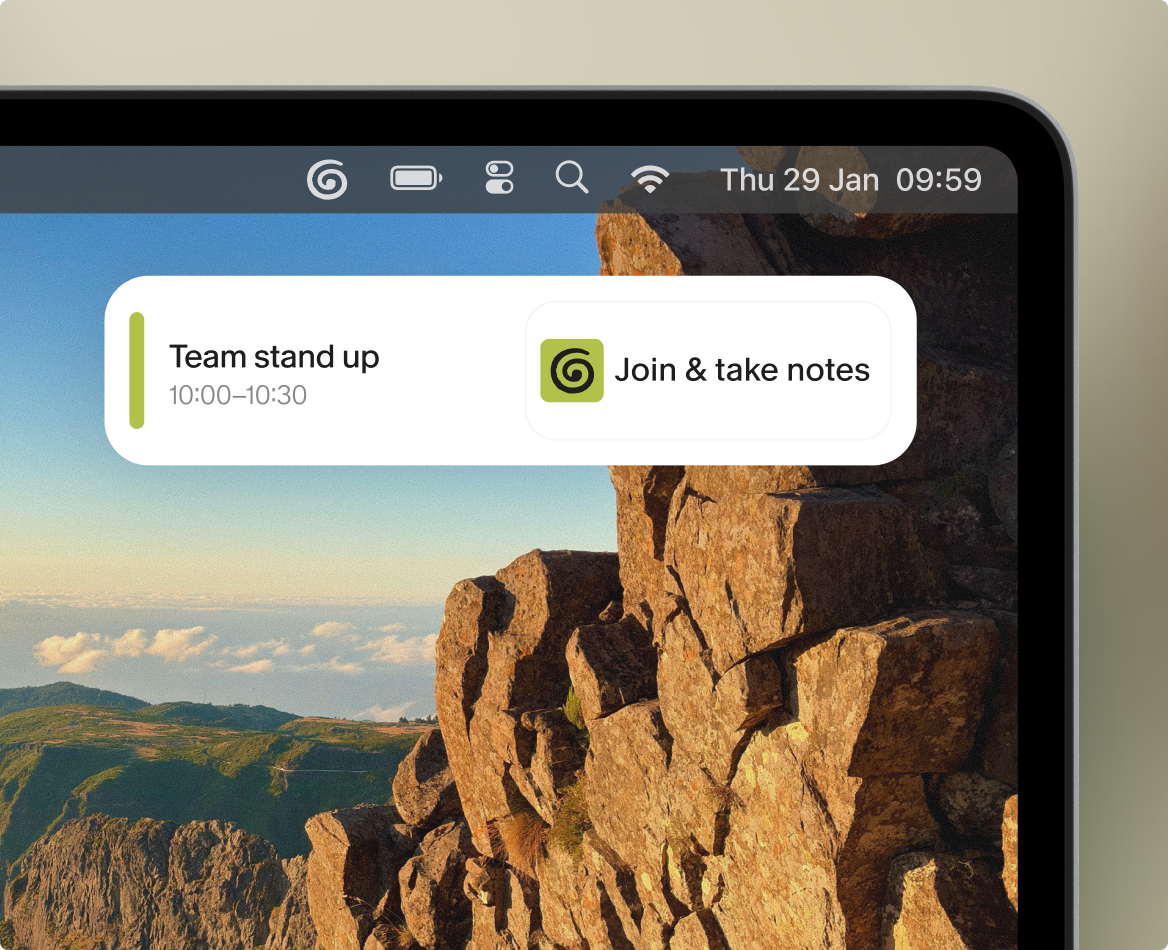
One minute before a scheduled meeting with 2+ attendees, we send a notification. Click it to launch both your video call and start transcribing with a single click. During the meeting, type anything or nothing. Use Markdown formatting to guide the AI. Ask questions like "What were their main concerns?" for immediate answers from the live transcript.
When the meeting ends, click "Enhance notes." Your notes stay in black and the AI additions appear in gray so you can easily edit, delete, or refine anything.
Testing Granola for customer research
Let participants know before you capture interviews
Participants should always be informed when transcription is used. Granola includes an optional consent notification feature that sends a brief message in supported meeting chats. You can enable it in Settings > Labs > Let others know you're using Granola (available on Zoom and Google Meet for macOS).
"The notes are detailed enough that I can stay in the conversation and still have a clear record afterward" - Cory M. on G2
Tag insights and query patterns
Before your interview: Open a new note and create rough headings: Pain Points, Feature Requests, Timeline, Budget, Follow-up.
During the conversation: Use simple headings to anchor your notes, Pain Points, Feature Requests, Timeline, Follow-up. Jot down short cues as they come up and stay focused on the discussion instead of trying to capture everything word for word.
After the call: Click Enhance notes. Granola fills in the missing context from the transcript, expanding your bullets with relevant details and customer language. Your structure stays intact. You decide what belongs, what gets edited, and what gets removed.
Templates speed up this workflow. Click the Change template icon at the bottom of your notes and select from pre-built options (1-on-1, Stand-up, Weekly Team Meeting) or create custom structures. Users report that "AI Summary templates" that adapt to meeting type save significant synthesis time.
Query across folders: Chat works within individual meetings and across folders. Create a folder called "Customer Interviews Q1 2026." After running 5-10 interviews, ask the folder: "What are the top 3 pain points mentioned?" You'll get pattern analysis with citations to specific conversations. Ask "Which enterprise customers mentioned SSO?" and see source-linked answers. This creates organizational memory that survives turnover.
Understand privacy and compliance
We don't store audio, only transcripts. On macOS and Windows, audio is transcribed in real-time then deleted. On iPhone, we temporarily cache audio during the meeting, then delete it from all systems once transcription completes. We encrypt personal data at rest and in transit using AWS's encrypted database system and achieved SOC 2 Type 2 certification in July 2025.
Evaluation checklist: Is Granola right for your research workflow?
Use this checklist during your first week to determine if our approach fits your needs:
- Run 3-5 customer interviews using device audio capture
- Test note quality: Did the enhanced notes capture what customers actually said?
- Evaluate enhancement quality: Do AI additions match what customers said?
- Try folder-level queries: Can you find patterns across interviews?
- Check synthesis time: How much faster is post-interview documentation?
- Test template customization: Can you create structures for your interview types?
- Assess privacy requirements: Does transcript-only documentation meet your compliance needs?
- Calculate ROI: Does time saved justify $14/month Business upgrade for unlimited history?
Pricing and plans: When to upgrade
| Feature | Basic (Free) | Business ($14/user/mo) | Enterprise ($35/user/mo) |
|---|---|---|---|
| Best for | Testing & current projects | High-volume of meetings, unlimited search history, and advanced integrations | Enterprise compliance |
| AI meeting notes | Yes | Yes | Yes |
| Meeting history | Limited | Unlimited | Unlimited |
| Shared folders | Yes | Yes | Yes |
| Templates & Recipes | Yes | Yes | Yes |
| Advanced integrations | No | Yes | Yes |
| Advanced AI models | No | Yes | Yes |
| SSO | No | No | Yes |
| Priority support | No | No | Yes |
Upgrade to our Business plan ($14/user/month) when you need unlimited meeting history, CRM integrations (HubSpot, Attio, Affinity), or advanced AI thinking models. You'll also get centralized billing and user management.
Upgrade to our Enterprise plan ($35/user/month) when you need SSO, org-wide auto-deletion periods, priority support with a dedicated contact, or usage analytics.
Get started with Granola today
Download Granola for Mac, Windows, or iOS. Connect your calendar and run your first meeting. The Free plan never expires and includes unlimited meetings. When you need unlimited history or CRM integrations, upgrade to Business at $14/user/month.
Frequently asked questions
Does Granola work on Windows? Yes. We support macOS, Windows, and iOS.
Do I need to invite a bot to my meetings?No. Granola runs on your laptop or phone and uses your device's audio to generate notes. We recommend telling participants you're using Granola to take notes.
Is my data used to train AI models? All users can opt out of model training in settings.
Does Granola record video? No. We only transcribe audio. We don't create audio or video recordings.
How long do I have access to meeting notes on the Free plan? Limited meeting history. Older notes become inaccessible unless you export them.
Can I share notes with teammates on the Free plan? Yes. Shared folders work on all plans, including Free.
What happens to audio after meetings? We transcribe audio then delete it. We only retain text transcripts.
Key terms glossary
Device audio capture: Granola runs on your laptop or phone and uses your device's microphone and system audio to generate notes.
Enhanced notes: AI-generated additions to your rough notes, pulled from the meeting transcript. Your original notes stay in black; AI enhancements appear in gray so you can distinguish and edit them.
Meeting history limit: The Free plan provides access to notes from the past 14 days. Older meetings become inaccessible unless exported before the limit.
Human-in-the-loop: You jot what matters during the meeting. AI enhances your notes afterward with context from the transcript. This contrasts with full automation where AI decides what's important.
Recipes: Pre-built prompts for Granola Chat that process meeting content in specific ways, such as extracting feature requests or creating follow-up emails.
Opt-out of model training: All users can disable AI model training on their data in settings. This prevents third-party providers from using your transcripts to improve their models.