





How to use Granola with Zoom
March 5
Granola uses your device's audio to generate notes from your Zoom meetings, so you can stay in the conversation instead of typing. Let the other participants know you're using Granola to transcribe the call.
Granola captures audio locally on your Mac or PC through your system audio and microphone. Here's how it works, how to set it up, and how to use it for the meetings where it matters most.
How Granola captures Zoom audio
The key is where the audio is captured. Granola captures audio directly from your device, accessing the same microphone and system audio output that your headphones or speakers use. That means it works on any call you can hear, and gives you a full transcript to build your notes from afterward.
Here's how the two approaches compare across the dimensions that matter most:
| Feature | API-based tools | Granola |
|---|---|---|
| Appears in participant list | Yes | No bot. Uses your device audio |
| Audio file stored | Yes (for playback) | No (transcripts only) |
| Works when you're not the host | Varies | Yes, always |
| Platform requirement | Platform-specific API | Any meeting you can hear |
Because Granola runs at the operating system level rather than through Zoom's API, it works on any call you can attend, whether you're the host or a guest.
Granola is SOC 2 Type 2 certified and GDPR compliant. Third-party AI providers are contractually prohibited from training on your meeting data, and Enterprise plans include organization-wide model training opt-out by default.
How to connect Granola to Zoom
Granola doesn't require a Zoom-specific integration. Because capture happens locally on your device, the setup process is about giving Granola access to your Mac's audio and your calendar, not about connecting accounts inside Zoom.
Follow these steps to get running before your next call:
- Download the app. Go to granola.ai and download the app for your platform (Mac or Windows). Open the installer from your Downloads folder and follow the on-screen installation flow for your operating system.
- Sign in. Sign-in uses Google or Microsoft single sign-on. Launch the app and authenticate with your Google Workspace or Microsoft account. Full getting-started instructions are in the help center if you need them.
- Connect your calendar. You'll be prompted to authorize calendar access. Upcoming meetings appear automatically in the Granola app.
- Grant audio permissions. Granola needs microphone and system audio access to transcribe your calls. How you grant this depends on your operating system:
- macOS: Navigate to System Settings > Privacy & Security and enable both Microphone and Screen & System Audio Recording for Granola. The screen recording permission is required because macOS bundles system audio access under that category, even though no video is captured. - Windows: Navigate to Settings > Privacy & Security > Microphone and ensure microphone access is enabled for Granola. System audio capture on Windows is handled automatically by the app and does not require a separate permission step.
- Open Granola when your meeting starts. Click into your meeting note before the call begins to start transcribing. You can customize transcription settings from within the app, including language preferences and note formatting.
The Granola 101 guide covers the core concepts if you're new to the product.
Telling participants you're using Granola
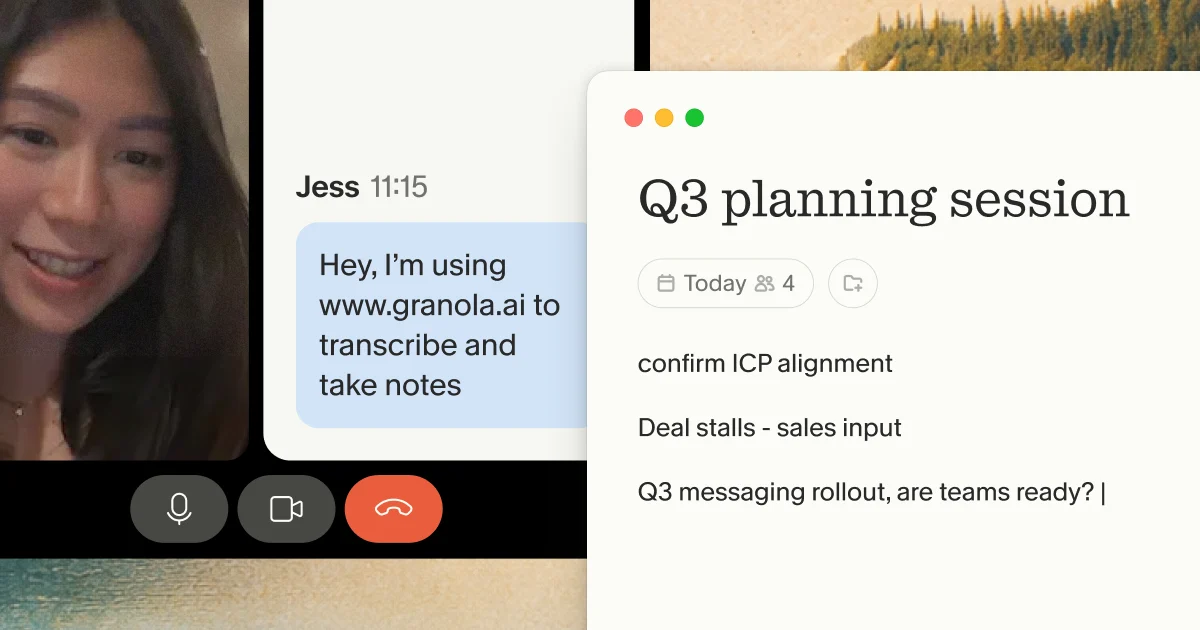
Granola runs on your laptop or phone and uses your device's audio to generate notes, so your Zoom setup is unchanged and there is nothing to configure inside Zoom itself. Tell the other participants that you're using Granola to transcribe the call — Granola includes an in-meeting notice and a video watermark to make that straightforward.
On the ethics of consent. The absence of a bot announcement doesn't remove the responsibility to handle consent thoughtfully. An in-meeting notice feature is available that can automatically send a message to participants letting them know you're using an AI notepad. For most professional contexts, a brief "I'm taking notes with an AI notepad" at the start of a call is both courteous and practical. It keeps the decision in your hands rather than the tool's automated behavior. For Google Meet specifically, Granola offers a dedicated in-meeting notice configuration you can review for that platform's consent flows.
How to use Granola across your Zoom meetings
The AI-enhanced notes feature works the same way across all your meetings: you jot rough notes during the call, Granola transcribes the full conversation, and the AI uses both to produce structured summaries after you end the meeting. The difference between meeting types comes down to which templates you use and how you query the notes afterward.
During the meeting
You jot rough notes, Granola transcribes the full conversation. The result is a complete transcript built around your own notes, so the summary reflects what actually mattered rather than a generic readout of everything said. This works the same way regardless of what kind of call you're running. The meeting type changes the template you reach for afterward, not the setup.
After the meeting
Select a template or customize your own, and Granola formats your notes into a structured summary you can share directly. The share feature lets you send a link where others can review the output and ask follow-up questions via the AI chatbox, without accessing the full transcript.
AI-enhanced notes adapt to the structure you set. If your notes follow an agenda, the summary follows it too. If you flagged open questions or next steps during the call, those surface in the output.
Across multiple meetings over time
Chatting with your past meetings turns fragmented notes into a searchable record. Questions like "What did we agree on last quarter?" or "What objections came up across these calls?" become queries rather than manual searches through old documents.
The more meetings Granola captures, the more useful this becomes. Pattern recognition across conversations, consistent documentation without extra effort after each call, and a record you can brief yourself from before any follow-up.
Executive recruiting and interviews
Recruiting calls present the same tension: you need a consistent, detailed record of each candidate conversation, and you want to stay present and listening rather than typing throughout.
Customizable templates let you structure interview notes automatically. Set up a template with your standard evaluation criteria, and Granola formats the transcript output around those sections after each call. When comparing three finalists for a Head of Engineering role, you're working from consistent structured notes rather than whatever you managed to type while listening.
"The AI Summary templates. Being able to choose what type of meeting it is and the notes being summarized accordingly. Also, the fact that Granola does not need to join your meeting." - Verified user on G2
Customer research and product discovery
Customer research calls benefit from Granola in two ways: real-time note-taking that keeps you present in the conversation, and post-call querying that surfaces patterns across multiple interviews.
During the call, you jot the exact phrases customers use, the objections they raise, the workarounds they describe, while Granola handles the transcript. The AI enhancement fills in the context your shorthand missed afterward.
The more powerful use case builds over time. As you accumulate customer interviews in a shared folder, you can query across all of them to ask "What did the last five users say about pricing?" or "Which enterprise customers mentioned the onboarding flow?"
Troubleshooting common audio issues
Most audio issues trace back to one of two causes: missing macOS permissions or a mismatch between your audio device settings.
If Granola isn't transcribing at all:
- On macOS, go to System Settings > Privacy & Security. On Windows, go to Settings > Privacy & Security.
- Confirm that Microphone access is enabled for Granola. On macOS, also confirm that Screen & System Audio Recording is enabled for Granola.
- Restart Granola by clicking the 'g' icon in your dock (macOS) or system tray (Windows) and selecting "Restart Granola."
If Granola transcribes your voice but not the other person:
This usually means the system audio output isn't being captured. Confirm your audio output device matches your system's default output, on macOS, check under System Settings > Sound > Output. On Windows, check under Settings > System > Sound > Output. As the Granola troubleshooting documentation notes, "Some Bluetooth or USB devices can cause dropouts, if transcription stops after a few minutes, try built-in audio or a different device."
Download the app, connect your calendar, and run your next Zoom meeting to see it in action.
Frequently asked questions
Does Granola announce it is recording in Zoom?
Granola doesn't join the call as a bot, so there's no built-in Zoom announcement to trigger. When you use Granola, the other people in the conversation should know, and we offer a visible video watermark and an automatic chat message to make that easy.
Can I use Granola if I am not the Zoom host?
Yes. Because Granola runs on your desktop and captures device audio, you can transcribe any meeting you can hear regardless of host permissions. How transcription works explains the mechanism in more detail.
Does Granola work with headphones?
Yes. Granola captures the audio stream sent to your output device, whether built-in speakers or headphones, ensuring both your voice and guest audio are transcribed. On macOS, set your headphones as the default output device in System Settings > Sound. On Windows, set them as the default output device in Settings > System > Sound to make sure the audio routing is correct.
How does Granola compare to Zoom AI Companion?
Zoom AI Companion requires host activation and admin enablement within your Zoom organization. Granola runs on your laptop or phone and uses your device's audio to generate notes, works across Zoom, Google Meet, Teams and any other platform you can attend, and needs no host activation.
Does Granola store the audio from my Zoom calls?
No. Granola transcribes audio in real time on your device and then discards the audio stream. Only transcripts and your notes are stored. Full details are on the security page.
What does Granola's free plan include?
The Free plan includes unlimited meetings with limited history access. The Business plan ($14/user/month) adds unlimited meeting notes and history, team shared folders, CRM integrations with HubSpot, Affinity, and Attio, and Zapier, Slack, and Notion integrations. The Enterprise plan ($35/user/month) adds SSO, organization-wide model training opt-out, and admin controls. Current plan details are on the pricing page.
Key terminology
AI notepad: A tool like Granola that lets you jot rough notes while it transcribes and then enhances them using AI, distinct from fully automated note takers that generate summaries without your input.
Local device capture: A transcription method where the software captures device audio directly on your computer rather than joining the conference call as a digital participant. It requires no integration with the meeting platform's infrastructure, so it works on any call you can hear.
Device audio: The sound stream generated by your computer, specifically what you hear through your speakers or headphones. We capture this stream to transcribe meetings without requiring any API integration with the meeting platform.
Native desktop app: Software installed and run on your Mac or Windows computer, which gives it access to your device's microphone and system audio for transcription.
Zoom AI Companion: Zoom's built-in feature for summaries and action items. It requires host activation and admin enablement within your organization, and works only on Zoom calls.
System audio permissions: The operating system privacy setting that allows Granola to capture your meeting's audio output. On macOS, this appears as Screen & System Audio Recording under Privacy & Security. On Windows, equivalent audio access is managed through the Sound and Microphone privacy settings. Required alongside Microphone access for full transcription of both sides of a Zoom call.