





Slack Huddle transcription with Granola
February 25
TL;DR: Slack offers no native recording for Huddles on any plan. Granola fills that gap by transcribing audio from your device and generating structured notes. Let the other participants know you're using Granola to transcribe the call, create a note manually when the Huddle starts, watch both sides of the conversation appear in the live transcript, and push the enhanced summary to the relevant Slack channel when you're done. Setup takes under five minutes.
Decisions made in Slack Huddles have a habit of disappearing. You agree on a priority, end the call, and two hours later nobody can reconstruct exactly what was said. The informal nature makes Huddles useful, but it's also why the output rarely gets written down.
Granola solves this without adding friction. It creates a live transcript of what you hear through your computer, runs in the background while you stay focused on the conversation, and lets you share structured notes back to the channel once the call ends.
Why Huddles go undocumented
Slack built Huddles for speed, not formality. The problem is that speed and documentation rarely coexist, so quick syncs become the place where context goes to die. Without a transcript, whatever got decided lives only in memory.
Slack's native AI does generate Huddle summaries with key takeaways and action items, and these features are now available on all paid plans. The limitation isn't availability. It's scope: Slack AI works within Slack's own ecosystem, produces fully automated output with no human input shaping the summary, and doesn't let you search across calls from different platforms in one place.
Granola's approach sidesteps both constraints. Here's how the approaches compare:
| Feature | Slack native AI | Bot-based tools | Granola |
|---|---|---|---|
| Capture method | No | Yes | No bot. Uses your device audio |
| Available on | All paid plans | All plans | All plans |
| Output method | Fully automated | Fully automated | You jot, AI enhances |
| Cross-platform search | Slack only | Varies | All meetings in one place |
How Granola creates a Slack Huddle transcript
Slack doesn't support recording a Huddle on any plan, but Granola creates a written transcript instead by capturing audio directly from your device. Granola transcribes audio directly from your device, picking up both your microphone input and the system audio playing through your computer. There's nothing to invite or configure in Slack, and we recommend telling the other participants at the start that you're using Granola to transcribe the call.
When the live transcript panel is active, you'll see color-coded bubbles: gray on the left for system audio (other participants) and green on the right for your microphone. If both colors appear, both audio sources are working correctly.
"What I like best about Granola is how effortlessly it handles meeting notes without disrupting the flow of the conversation. It listens directly from my device audio, no bots joining calls, and produces clean, structured summaries with decisions, action items, and key points." - Brahmatheja Reddy M.
Step-by-step: Transcribing your first Huddle
Follow these steps to turn a Huddle into a transcript from start to finish. Granola runs on macOS and Windows. The steps below use Mac as the primary example, with Windows differences noted where they apply.
Before you start, confirm you have:
- Granola installed (requires macOS 13 or above, works best on 14.2+)
- A Google Workspace, personal Gmail, or Microsoft account for sign-in
- Microphone and system audio permissions granted
On Mac, check permissions at System Settings > Privacy & Security > Microphone and Screen & System Audio Recording. On Windows, permissions are granted automatically during installation.
- Open Granola before or as soon as your Huddle starts. Because Huddles are typically ad-hoc and won't appear in your calendar, Granola won't auto-detect them. Create a new note manually using the "+" button or the Quick Note shortcut.
- Name the note with something identifiable, such as "Design sync - Feb 25," so it's searchable later.
- Join the Slack Huddle on your desktop app. Granola begins transcribing immediately once you're in the note. Look for the green dancing bars at the bottom of the Granola window to confirm capture is active.
- Jot rough notes on anything important while you talk. A few keywords or bullet points give Granola context that improves the quality of the AI-enhanced notes Granola generates afterward. You don't need to write everything down.
- End the Huddle, then click "Enhance notes" in Granola. The app combines your rough notes with the full transcript to produce a structured summary.
Before your first important Huddle, run a quick test call. Have the other person speak for ten seconds, then check that gray bubbles appear in the transcript alongside your own green ones. If only one color appears, consult the transcription troubleshooting guide.
"Easy to set up and runs quietly in the background. Accurate discussion summaries with the backup transcript available." - Joe M. on G2
Closing the loop: Sharing notes back to Slack
Getting the summary into the relevant channel is a two-step process: connect the integration once, then share after each meeting. Sharing to Slack requires a Business or Enterprise plan. The free Basic plan supports Huddle transcription and enhanced notes, just without the direct push into a Slack channel. See the pricing page for the current plan breakdown.
Connecting Granola to Slack: Go to your avatar in the bottom left of Granola, open Settings, and navigate to Integrations. Select Slack and follow the browser prompt to authorize your workspace. The Slack integration works with the work account connected to Granola, and your default link-sharing setting must be something other than "Private" for the share button to appear.
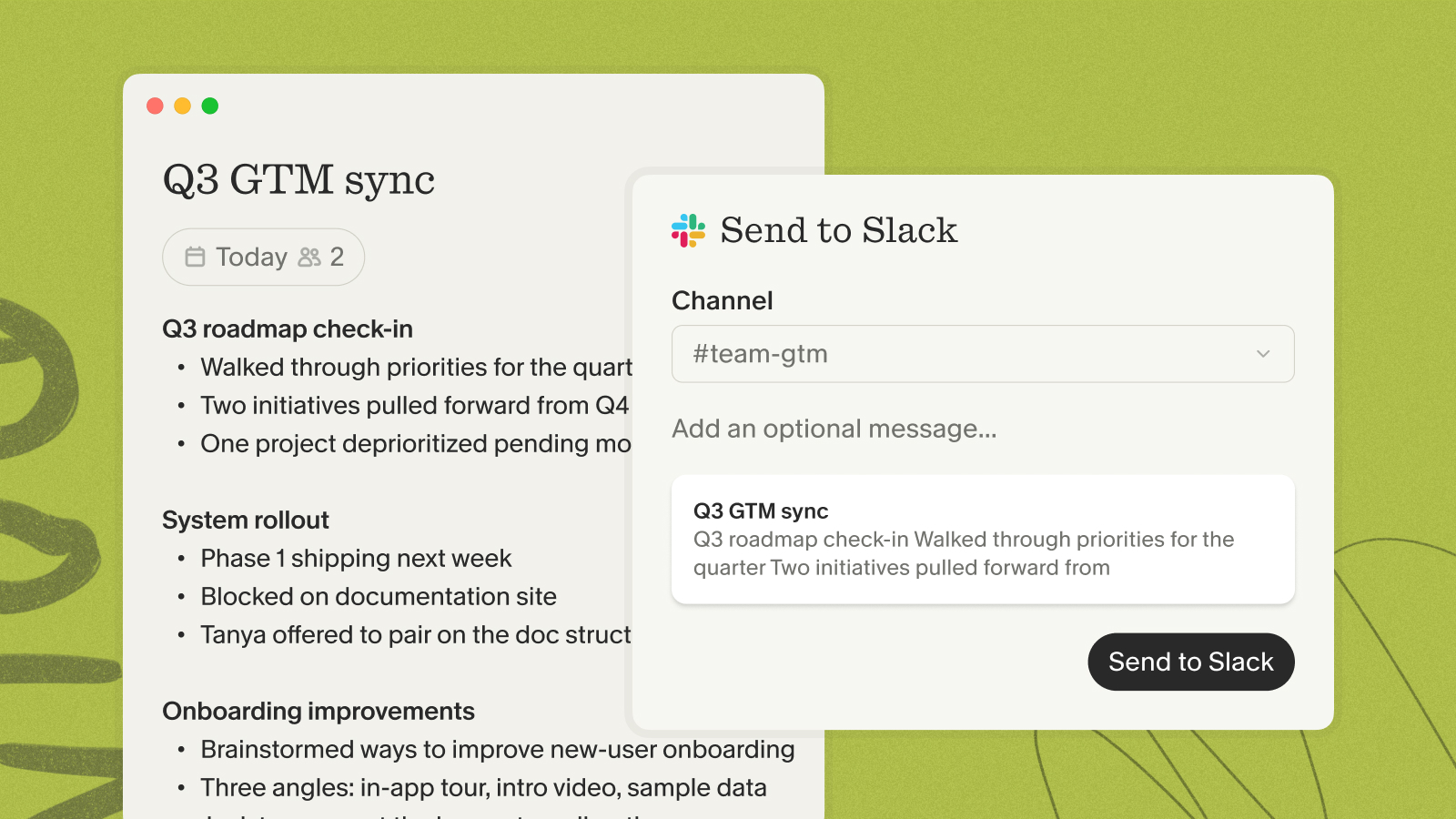
Sharing a note: Once you enhance your notes, click the Slack option in the top right of the note, select the target channel (for example, #proj-design or #eng-sync), and post. The full Slack integration guide also covers automated folder-to-channel rules for teams that want notes posted without a manual step each time.
The ephemeral Huddle now has a permanent, searchable artifact in your channel history. Anyone who missed the call can read the summary, check the full transcript via chat, and understand what was decided without needing a follow-up explanation.
"With Granola I don't have to worry anymore about taking meeting notes. Love that I can easily share my notes with my colleagues as well, and that we can all chat with the meeting transcript so everyone can see the full context of the meeting, even if they weren't there." - Jess M. on G2
Sharing back to Slack is only one step in the post-meeting workflow. Once a Huddle note exists in Granola, you can shape its format, push it to other tools your team already uses, and build a running record of relationships with the people you meet with regularly.
Recipes
Recipes are templates that tell Granola how to structure the enhanced note it produces. Instead of a generic summary, you can apply a Recipe before or after the meeting to get output matched to the meeting type: a standup recap with blockers and next steps, a decision log with owners and deadlines, or a lightweight check-in summary for a recurring 1:1. For a Slack Huddle, choosing the right Recipe means the note you share back to a channel is already in the format your team expects, without manual reformatting. Recipes can be created from scratch or duplicated from an existing one and adjusted.
Other integrations
Slack is the default sharing destination, but Granola notes can be pushed elsewhere. The Notion integration lets you send a Huddle summary directly to a Notion page, which is useful when decisions from a sync need to live alongside a project brief or roadmap. For sales and account teams, Granola connects to CRM tools so that call notes, including those from informal Huddles with prospects, can be logged against the right contact or deal without copy-pasting. Zapier support extends this further: any downstream tool that accepts a Zapier trigger can receive Granola output, which covers ticketing systems, project management tools, and internal wikis that lack a native integration. These integrations apply to Huddle notes the same way they apply to any Granola meeting.
People & Companies views
Every participant in a Huddle is automatically associated with their profile in Granola's People view. After the meeting, you can open that profile and see a timeline of every meeting you've had with that person, Huddles included, along with the notes from each. The Companies view groups contacts by organization, so if you run a weekly sync with a vendor or partner team over Slack, Granola builds a continuous record across every session. This is particularly useful for recurring Huddles where context from three weeks ago is otherwise buried in a thread: instead of searching Slack history, you open the person's profile and see the full arc of what was discussed and decided.
Privacy and security for internal syncs
Granola does not store audio. It captures device audio and transcribes it in real time, and the audio is not saved at any point during or after the call. What persists is the transcript and the notes you create. You can configure automatic transcript deletion if you want the raw transcript removed after the note is enhanced.
Third-party AI providers cannot use your data to train their models, per Granola's privacy policy. You can also opt out of anonymized data being used to improve Granola itself in your account settings, and Enterprise users have model training turned off by default. Granola holds SOC 2 Type 2 certification as of July 2025 and maintains GDPR compliance.
Tell the other participants at the start of the call that you're using an AI notepad to transcribe the conversation. For scheduled meetings, Granola's Automatic In-Meeting Notice handles this for you, but for ad-hoc Huddles a direct mention is the cleaner approach.
Troubleshooting audio capture
Most issues come down to one of three causes:
- Only your voice appears (no gray bubbles): Granola is capturing your microphone but not system audio. On Mac, go to System Settings > Sound > Audio and confirm the input device matches what your Slack Huddle is using. Also check that no "pass-through" option is enabled on your audio device, as these can route microphone input back as an output signal.
- Transcription drops after a few minutes: This typically affects Bluetooth or USB devices with audio enhancements enabled. Find the Audio Enhancements option in your device settings and turn it off. Switching to built-in audio or a wired headset resolves this in most cases.
- Transcription not starting at all: Restart Granola first. If that doesn't resolve it, a full computer restart is the most reliable fix when the transcription process has crashed in the background.
On Windows, audio settings live at Settings > System > Sound. Granola uses whichever device you've set as the default communications device, so confirm your Huddle audio and that default setting point to the same device.
Try Granola for free. Download the Mac or Windows app and start a new note before your next Huddle.
Frequently asked questions
Do Slack Huddles have transcripts?
No, not natively. A Slack Huddle doesn't generate a transcript on its own. Granola creates one by capturing your device audio during the call and turning it into a searchable transcript and notes you can share back to the channel.
Can Granola automatically detect when a Slack Huddle starts?
No. Granola detects meetings from your Google or Microsoft calendar. Because Huddles are typically ad-hoc and don't appear on your calendar, you need to open a new note manually before or when the call starts.
Does it work with Bluetooth headphones?
Yes, with a caveat. Set your headphones as the default audio device in system sound settings. If transcription drops after a few minutes, switch to built-in audio or a wired headset, as some Bluetooth devices interfere with continuous system audio capture.
Does Granola work on Windows for Slack Huddles?
Yes. The core capture mechanism is the same on both platforms. Audio settings are at Settings > System > Sound on Windows 10 and 11, and permissions are granted automatically during installation.
Can I share notes to a private Slack channel?
Yes, as long as your Granola account has access to that channel within your connected workspace and your Granola link-sharing setting is not set to "Private."
Can I query the transcript after the Huddle ends?
Yes. After notes are enhanced, you can chat with the full transcript to pull out specific decisions, action items, or context from the call.
Does the iOS app work for live Slack Huddles?
The iOS app processes audio after the meeting ends rather than in real time, so the desktop app is the better choice for live Huddles where you want to monitor the transcript as it builds.
What else can I do with Granola after a Slack Huddle ends?
Sharing a note to a Slack channel is just the starting point. Granola's post-meeting workflow lets you shape, route, and build on Huddle notes in several ways, using Recipes to control output format, pushing notes to tools beyond Slack through native integrations and Zapier, and surfacing Huddle participants in relationship views so recurring syncs accumulate context over time.
Key terms glossary
Slack Huddle: A lightweight audio or video call within Slack, designed for quick informal syncs. Huddles have no native recording capability on any Slack plan.
Device audio capture: The method Granola uses to transcribe meetings, picking up both your microphone input and the system audio output of your computer without joining calls as a visible participant.
System audio: The audio that plays through your computer's speakers or headphones, including the voices of other Huddle participants. Appears as gray bubbles in Granola's live transcript.
Enhanced notes: The output Granola produces after a meeting by combining your rough in-call jottings with the full transcript context to create a structured summary with decisions and action items.
SOC 2 Type 2: An independent security audit standard confirming that a company's data handling practices meet defined criteria. Granola achieved this certification in July 2025.