





How to connect Granola to Salesforce using Zapier
February 21
TL;DR: Granola does not have a native Salesforce integration, but you can build a reliable connection using Zapier. You need a Zapier Professional plan ($19.99/month billed annually) because Salesforce is a premium Zapier app and multi-step workflows require a paid tier. Once you set it up, your Granola enhanced notes, summaries, and action items flow directly into Salesforce Opportunities, Contacts, or Accounts automatically. The result: you turn your private research and discovery work into shared organizational intelligence without any manual copy-pasting.
Most organizations have a data visibility problem: the best insights from customer conversations stay trapped in personal notebooks because moving them to Salesforce requires manual copy-pasting that nobody has time for. Product managers conduct interviews and synthesize findings, but if those insights never reach Salesforce Contact or Opportunity records, the sales and success teams operate without context.
Granola sits at the source side of this problem. It runs on your laptop or phone and uses your device's audio to generate notes, so you can stay present in the conversation and jot rough notes on what matters most — let the other participants know you're using it to transcribe the call. When the meeting ends, Granola turns those notes into structured summaries, action items, and searchable transcripts. Zapier is the bridge that moves that output into Salesforce automatically, mapping exactly the fields you choose.
This guide covers the full setup, a practical workflow for pushing research insights to your org, and how to handle the most common configuration errors.
Why connect Granola meeting notes to Salesforce?
The core problem is a gap between where insight lives and where your organization looks for it. Granola is your personal workspace for capturing what happens in meetings. Salesforce is the public record your sales, success, and leadership teams rely on to make decisions. Left disconnected, the best data you collect stays invisible to everyone who needs it.
For product managers pushing "Voice of Customer" research into the organization, this gap is particularly costly. You run the interviews, synthesize the themes, and document the insights. But if that material never reaches the Salesforce Contact or Opportunity records, the sales and success teams run their next call blind, repeating questions you already answered months ago. Your research becomes invisible the moment it stays in your personal notes.
The Granola-to-Salesforce connection via Zapier addresses this directly. You can review the full Zapier integration setup in the Granola help center and browse all available Granola integrations. You review and edit your notes in Granola before they sync, so only the content you have checked reaches Salesforce.
"The time saved in adding notes to CRM and removed from admin follow ups. Great integrations." - Rakeem L. on G2
Prerequisites for the integration
Before building your first Zap, confirm you have each of these in place.
Granola Business plan: The Zapier integration requires a Business plan ($14/user/month) or above. The Free plan does not include integration access. You can verify current plan features on the Granola pricing page.
Zapier Pro plan: Salesforce is a premium app on Zapier, meaning it requires a paid subscription. The Professional plan costs $19.99/month billed annually (or $29.99/month billed monthly) and includes unlimited multi-step Zaps, access to premium apps, and logic tools like Filters. The 750 tasks per month included on Pro is more than enough for typical meeting volumes, and Filters and Formatter steps do not count toward your task limit.
Salesforce edition with API access: Enterprise, Unlimited, Developer, and Performance editions include API access by default. If you are on Professional or Group edition, contact your Salesforce account executive to add API access. Without it, Zapier cannot connect to Salesforce.
User permissions: Your Salesforce user profile must have API Enabled checked under Administrative Permissions, plus Create and Edit permissions on whichever objects you plan to update (Contacts, Opportunities, Notes). A Salesforce admin can verify this in your user profile settings.
Step-by-step: setting up the Granola-Salesforce Zap
Step 1: connect Granola as your trigger
Log into Zapier and create a new Zap. Search for Granola in the trigger app field.
Granola offers two trigger options, documented in the Granola help center:
- Note Added to Granola Folder: Fires automatically whenever a new note lands in a folder you designate. This works well if you organize meetings by type, for example a "Discovery Calls" folder.
- Note Shared to Zapier: Fires when you manually share a specific note to Zapier from the note sidebar. Use this when you want full control over which meetings trigger the workflow.
Granola uses OAuth, so you authorize the connection through a browser window rather than pasting an API key. Once connected, Zapier loads up to three recent meetings so you can verify the trigger data before building the rest of the Zap.
Optional filter step: Add a Filter by Zapier step immediately after the trigger to narrow which notes continue. Set it to only proceed if the Meeting Title contains a keyword like "Discovery" or "Research," which prevents internal team syncs from appearing in Salesforce.
Step 2: find the Salesforce record before writing anything
Add a second step using Salesforce and select the Find Record action. This search step is critical: it checks whether a Contact or Opportunity already exists before the Zap writes anything, which prevents duplicate records.
Map the search field to an attendee email from the Granola trigger data. If no matching record is found, you can configure the Find Record step to create a new Contact rather than fail silently.
Step 3: update or create the Salesforce record
Add a third step using Salesforce and select Update Record if the Find step returned a match, or Create Record if it did not.
Most Salesforce Long Text Area fields preserve plain text line breaks correctly when sent via the Zapier API. If you see formatting issues after testing, add a Formatter by Zapier step between the trigger and the action, using the Text transform with Find and Replace to clean up any unexpected characters. Note that Salesforce text fields via Zapier do not support HTML formatting, so keep the output as plain text.
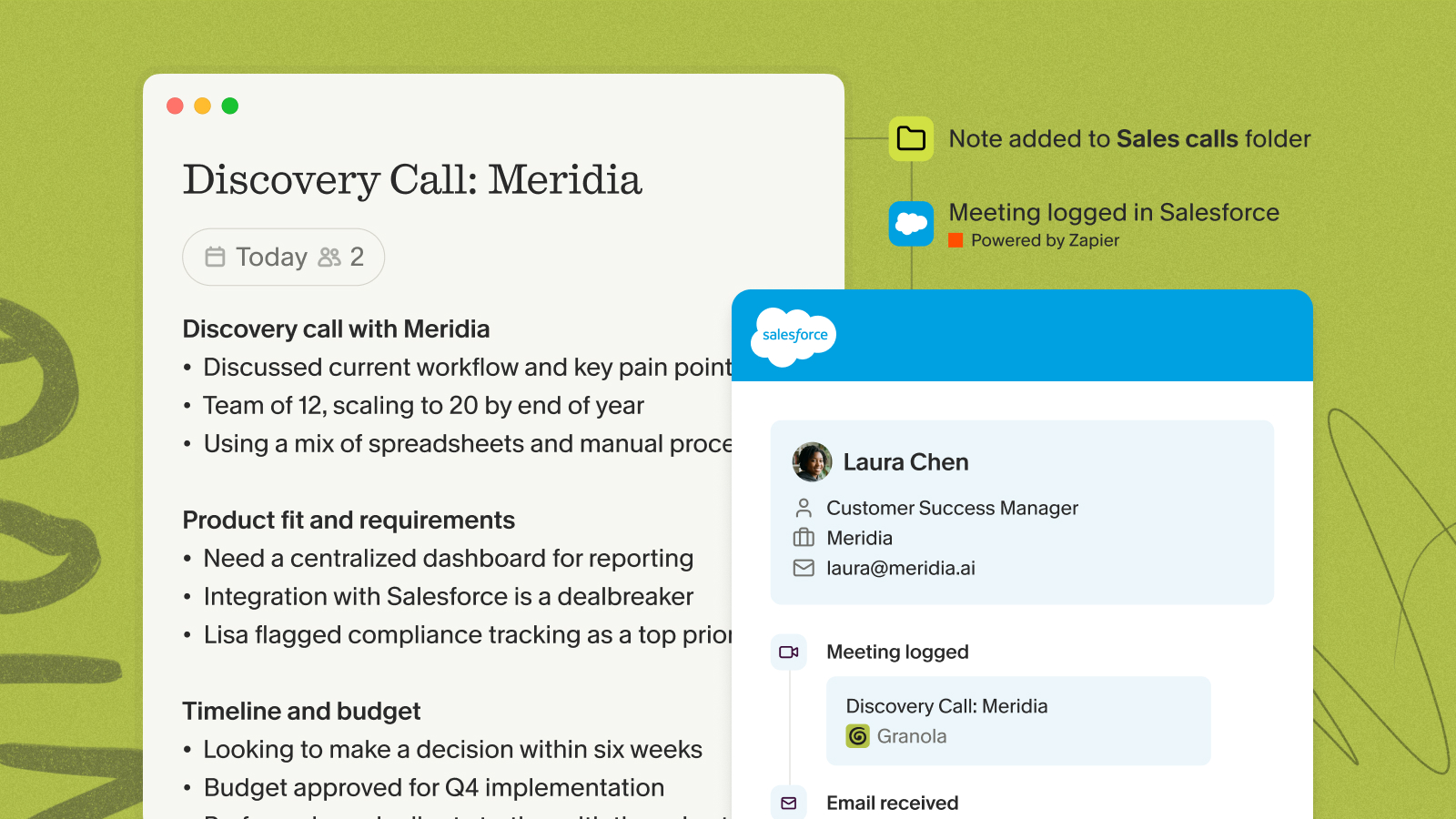
The research log workflow: turning interviews into organizational intelligence
Use this workflow to push customer interview insights directly to Salesforce Contact records so sales and success teams see what research has already uncovered before their next call.
- Trigger: Note Shared to Zapier (manual control so you decide exactly which interviews sync)
- Find Record: Search Salesforce Contacts by attendee email
- Create Note: Attach the full summary and top quotes to the Contact record
When a sales rep opens a Contact in Salesforce, they see the research context immediately. The "Voice of Customer" data reaches the org without you sending a Slack message or copy-pasting a Notion doc.
"clean, reliable meeting transcripts and smart follow-up summaries without any fluff. I use it for nearly every call to stay focused on the conversation instead of scribbling notes. The follow-up action items are especially useful. Huge time saver." - Verified user on G2
Sales teams can adapt this same pattern for deal hygiene by using a dedicated "Sales Calls" folder as the trigger and mapping to Opportunity records instead of Contacts. For multi-destination workflows that post to a Slack channel while simultaneously logging to Salesforce, the Zapier automate-Granola guide and Granola's native Slack integration docs cover how to chain those steps together.
Native integrations vs. Zapier: understanding the difference
Granola has native integrations with HubSpot, Attio, and Affinity for CRM, plus native Slack and Notion integrations. If your team uses one of those platforms, the native path is faster to activate.
| Attribute | Native (HubSpot, Attio, Affinity) | Zapier (Salesforce) |
|---|---|---|
| Setup | Simple OAuth, no Zapier needed | Multi-step Zap configuration |
| Cost | Included with Granola Business plan | Zapier Professional from $19.99/month |
| Field mapping control | Predefined | Fully custom, any field to any field |
| Multi-step logic | Not available | Filters, Paths, Formatter included |
| Maintenance | Managed by Granola | Occasional re-authentication required |
The HubSpot native integration attaches notes to Contact records and matches by attendee email automatically. The trade-off is fixed field mapping. With Zapier, you choose exactly which Granola output maps to which Salesforce field, add filtering logic so only specific meeting types sync, and chain multiple actions in a single workflow. The Granola blog covering its 8,000+ app connections explains how Zapier opens up that broader connectivity.
For teams committed to Salesforce, Zapier is the right path.
Troubleshooting common Zapier errors
"Record not found" on the Find step: This happens when a contact's email does not exist in Salesforce yet. Configure the Find Record step to create a new Contact when no match exists, or add a Filter step that only continues if the search succeeds. You can route unmatched records to a separate Slack alert for manual review using a Zapier Paths step.
Formatting issues in text fields: If the Granola summary appears as a wall of text without line breaks, add a Formatter by Zapier step before the Salesforce action. Use the Text transform with Find and Replace to handle line break inconsistencies. Test with your specific Salesforce field type first since most Long Text Area fields handle plain text correctly without the extra step.
Authentication errors: Salesforce OAuth tokens expire periodically. If your Zap stops working after a period of normal operation, re-authenticate the Salesforce connection in Zapier's Connected Accounts settings. This is routine maintenance, not a sign of a configuration problem.
Ready to get started?
Download Granola, connect your calendar, and run your next customer call. You'll jot rough notes during the conversation, then Granola enhances them into structured summaries afterward. Once you have a few notes in your Granola library, head to Zapier's Granola integrations page to build your first Zap.
If your team uses HubSpot instead of Salesforce, the native HubSpot integration connects without a Zapier plan required.
FAQs
Does Granola have a native Salesforce integration?
No. As of February 2026, Granola does not offer a native Salesforce integration. Zapier is the primary method for connecting the two tools.
What Zapier plan do I need for this workflow?
The Professional plan ($19.99/month billed annually) is the minimum required. Salesforce is a premium Zapier app unavailable on the free tier, and multi-step Zaps (trigger, find, update) require a paid plan.
Which Salesforce editions support the Zapier connection?
Enterprise, Unlimited, Developer, and Performance editions include API access by default. Professional and Group editions need an API add-on, which requires contacting your Salesforce account executive.
Can I filter so only specific meeting types sync to Salesforce?
Yes. Use the "Note Added to Granola Folder" trigger with a designated folder like "Discovery Calls," or add a Zapier Filter step after the trigger that checks if the meeting title contains a specific keyword.
Does Granola pass action items as a separate field to Zapier?
Yes. The Granola Zapier trigger provides structured fields including the enhanced summary and action items separately. When you test the trigger with a real meeting, Zapier displays all available fields so you can map action items to a dedicated Salesforce field like Next Steps or create a separate Task record.
What happens if the Contact doesn't exist in Salesforce yet?
Configure the Find Record step to create a new Contact if no match is found. Alternatively, route unmatched records to a Slack alert for manual review using a Zapier Paths step.
Key terms
Zap: A Zapier automation workflow consisting of one trigger and one or more actions that run automatically when the trigger condition is met.
Trigger: The event that starts a Zap. In this guide, the trigger is a new Granola note appearing in a specific folder or being manually shared to Zapier.
Action: The task Zapier performs after the trigger fires. In this guide, actions include finding a Salesforce record and then updating or creating it with Granola note data.
Find Record: A Zapier search step that looks for an existing Salesforce record before the Zap writes any data, preventing duplicate entries.
OAuth: An authorization method where you grant Zapier permission to access your Granola and Salesforce accounts through a browser login flow, rather than copying and pasting API keys manually.
Enhanced notes: The structured output Granola produces after a meeting, combining your rough notes with relevant context from the transcript into a clean, human-verified summary.